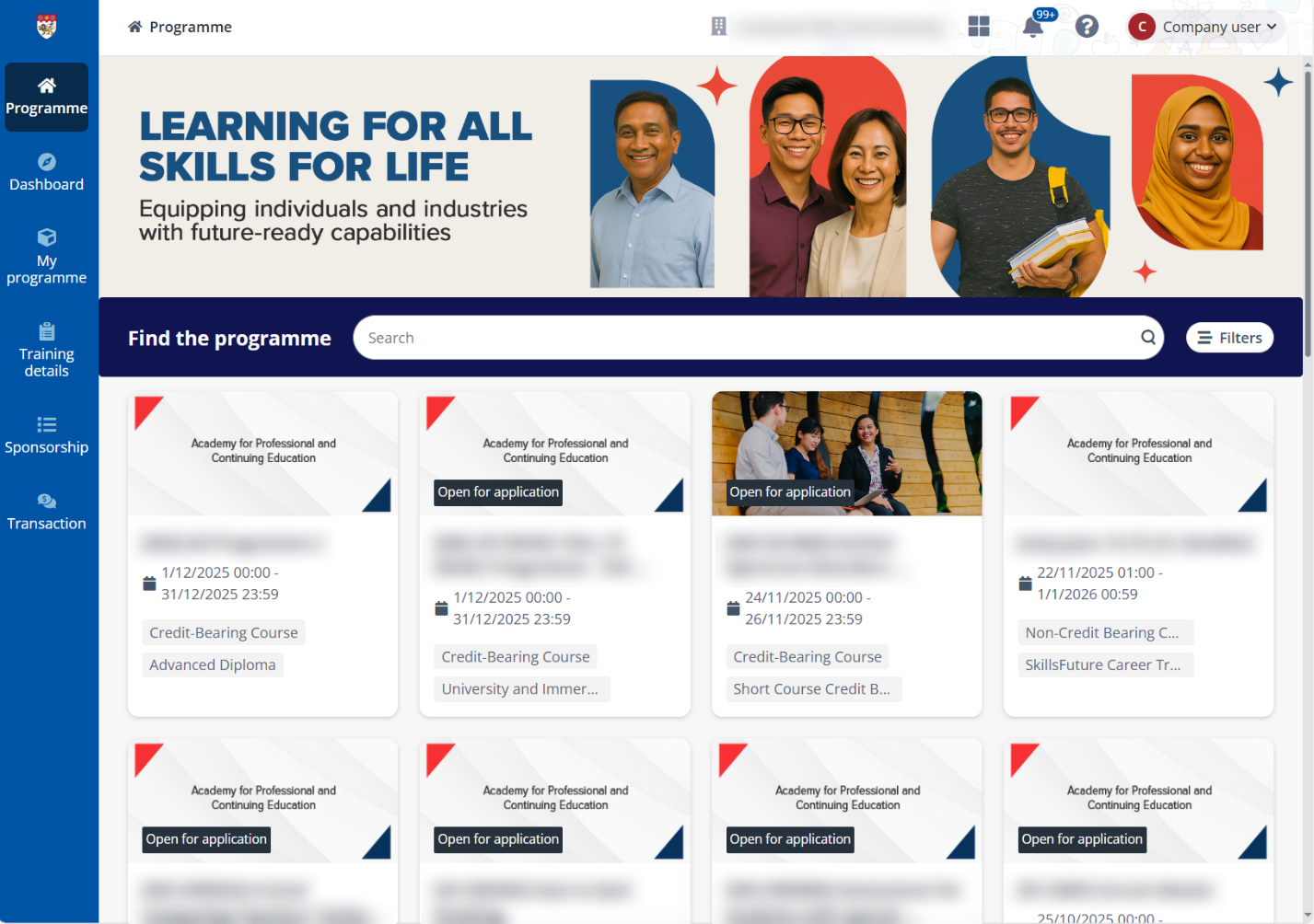
TMS is an online training management system that provides an integrated platform for training providers, sponsoring organisations, and learners.
The company portal is a public platform for companies to view and manage your sponsorship and applications of programmes.
*Note: A company administrator or user can be in charge of multiple companies. In this case, to switch to another company and perform operations, click the company name on the upper-right corner. In the drop-down list, you will be able to switch the companies by clicking the corresponding company name.
For more information on how a company’s administrator and sponsorship administrator can manage the company information, programme sponsorship, application, and payments, refer to:
•Company administrator:
o Sign up and sign into company portal
o Manage company branch and contacts
o Check announcements and notifications
o Apply to a programme for your employees
o Verify application sponsored by your company
o Make payments and view invoices
o View training details of enrolled employees
•Learner: TMS User Guide for Learner
The following table provides the required browser version. We recommend that you use the most recent versions of the following browsers for the best experience.
|
Browser |
Required version for desktop |
Required version for Android mobile/tablet |
Required version for iOS mobile/tablet |
|
Google Chrome |
The latest 2 major versions |
The latest 2 major versions |
The latest 2 major versions |
|
Microsoft Edge |
The latest 2 major versions |
The latest 2 major versions |
Not supported |
|
Mozilla Firefox |
The latest 2 major versions |
Not supported |
Not supported |
|
Safari |
The latest 2 major versions |
Not supported |
The latest 2 major versions |
The table below lists the company portal related roles and their system capabilities.
|
Role |
Description |
Permission |
|
Company administrator |
•The user who completes the sign-up process for the company. •Users who are assigned as a company admin when being added to the system. |
Company admins can access all pages and perform all management operations in the company portal. |
|
Company portal user |
Users who do not have the company admin role assigned when being added to the system. |
Company users can access all pages and perform operations in the company portal, except for managing company profile, branches, or contacts. |
|
Sponsored employee |
Users who are sponsored by your company and signed up to TMS as a learner. |
Learners who are not added as company users in the system cannot access the company portal, even if they are sponsored by a company. To check and manage their sponsorship, they need to sign into the TMS learner portal. |
If you are a new company admin, refer to Sign up and sign into company portal for instructions on setting up your account first.
After signing up your company to the system, complete the following prerequisites:
1. Complete your company profile – Provide the necessary company information for programme application and finance document generation. For more details, refer to Manage company information.
2. Configure company contacts and branches:
•Company contacts can access the company portal, sponsor applicants, and handle transactions. You can also assign the company admin role to these users, granting them permission to update the company profile, contacts, and branches.
•If your company has multiple offices or departments, each with designated personnel for employee sponsorship and programme applications, you can create multiple branches and assign contacts to them. Contacts assigned to a branch will only be able to manage applications and sponsorships for that specific branch.
For more details, refer to Manage company branch and contacts.
After the above has been set up, you and other company users can start checking the available programmes in the system and sponsoring your employees. Refer to this guide’s left navigation for more available operations in the company portal.