A company may have offices in different countries and each
office has its administrator for programme sponsorship and application. As the
company admin, when creating branches in the TMS company portal, you will need
to add each office’s sponsorship administrator as contacts of the branches, and
specify the billing contact persons to receive billings and invoices for company
sponsored applications. This will allow sponsorship administrators to manage
programme applications as well as sponsorships.
Configure company branches
Follow the steps below to start the branch
configurations:
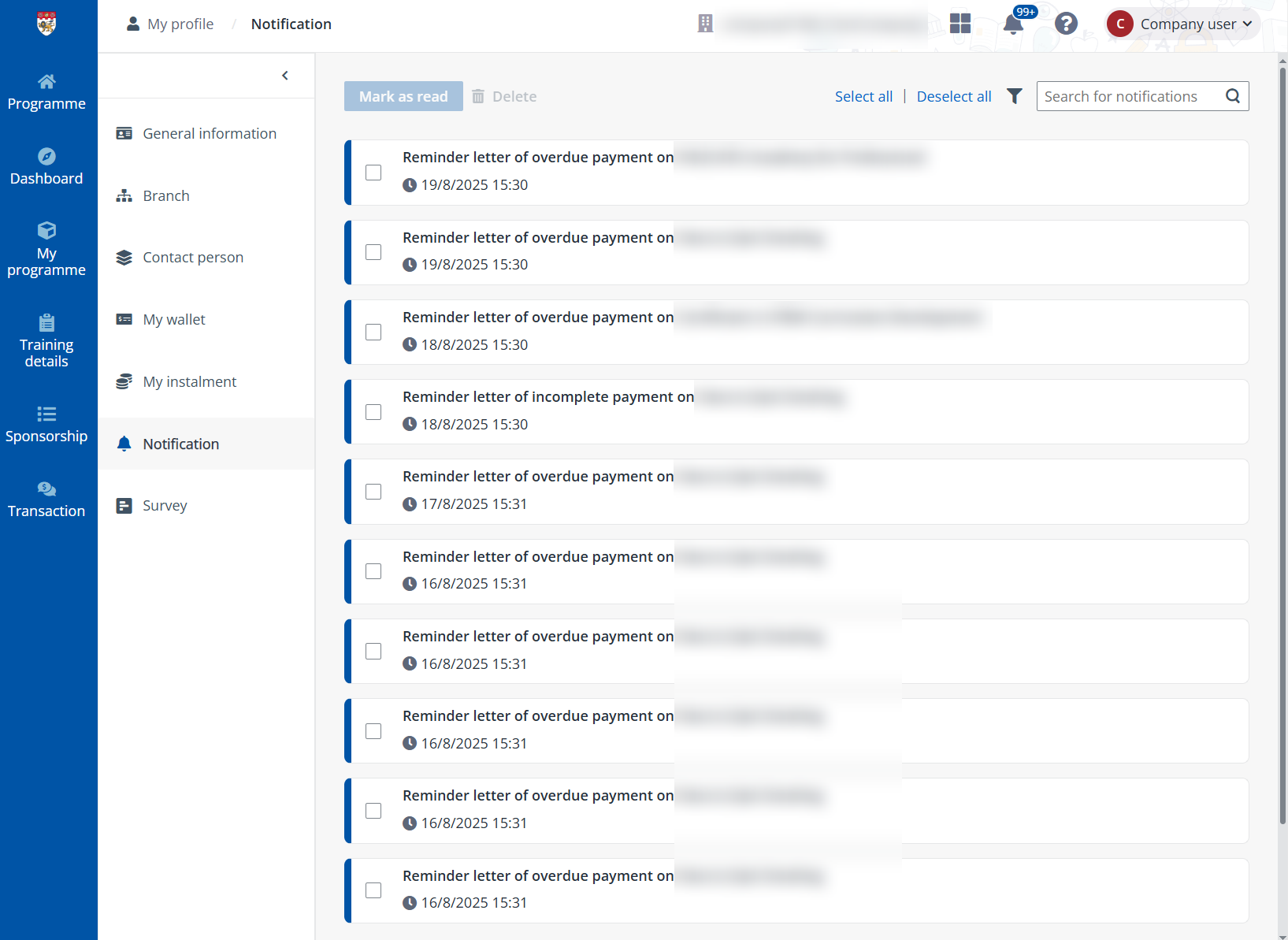
1. Click Company
user on the top right, and then click My profile.
2. On the
Branch page, click Create.
3. On the Create
branch page, complete the Company information for the branch.
4. In the
Contacts section, click Add contact person and select users
from the address book.
*Note: Contacts in the address book are retrieved
from company contacts. Refer to the Configure company contact section
below for details on contact management.
Once completed, click Add
to specify administrators for the branch.
5. To set
administrators as billing contacts, turn on the Set as billing contact
person switch.
6. Click
Save. The new branch is created.
Configure company contacts
To manage the profiles of the company’s contacts, click
Company user on the top right, and then click My profile.
Then, click Contact person in the left navigation
pane. On this page, contacts added to the system are listed. For detailed steps
on adding contacts to the system, refer to Add users to the
system.
By selecting a contact and clicking Edit, you can
update the information of the contact including the Company admin
assignment in the Edit contact person panel. After finishing the
configurations, click Save.