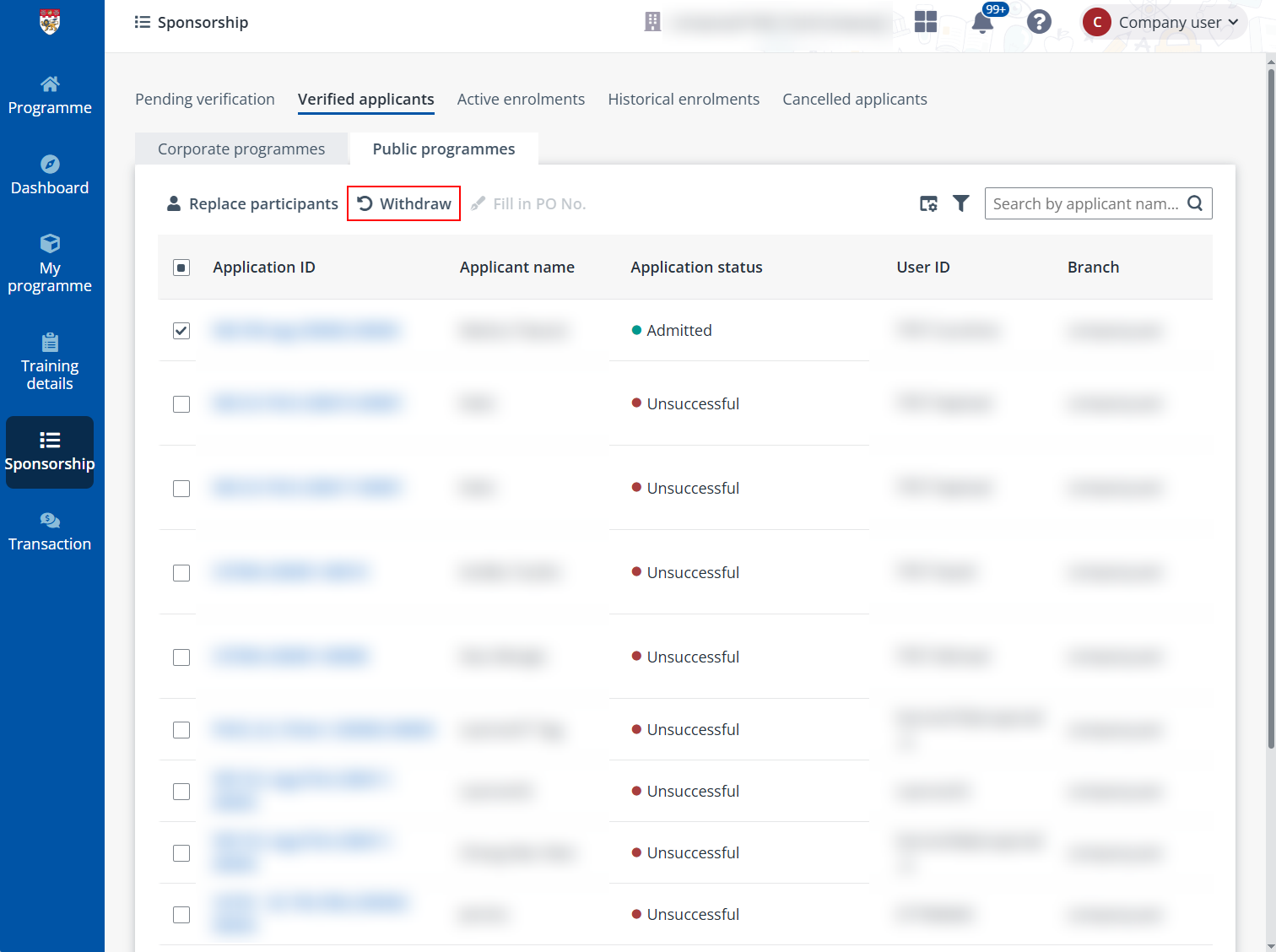
For some programmes, like internal training programmes or physical programmes, that your company sponsors, if you have the detailed profile and information of your employees that are available for programme application, you can do backend registration for your employees to apply for the programme on behalf of them. After your registration, the applications are verified automatically. These employees will not need to register themselves or go through any online process.
To do the backend registration on behalf of the employees, complete the following steps:
1. On the Programme page, click your target programme to go to the Programme details page.
2. In the Programme schedule section, click Apply.
If you have not signed up or signed in to the system, a window will appear with a Sign in button. Click the button to proceed with the sign-up/sign-in process and you will be redirected back to the Programme details page upon completion. For more details on sign-up/sign-in, refer to Sign up and sign into company portal.
3. In the Apply for programme window, select Apply on behalf of employees and click OK.
4. On the Apply for programme page, you can indicate whether your company is a Small Medium Enterprise (SME) and upload supporting documents. Then, select the branch for which the programme is sponsored and the billing contact person and click Complete.
5. The programme is applied and you can click Go to add applicants to add the employees. After clicking, you will be navigated to the Programme details page.
On the Programme details page, use one of the following methods to add the employees.
If you want to add employees one by one to the programme, or you need to supplement one employee to the programme learner list, complete the following steps to add the employee:
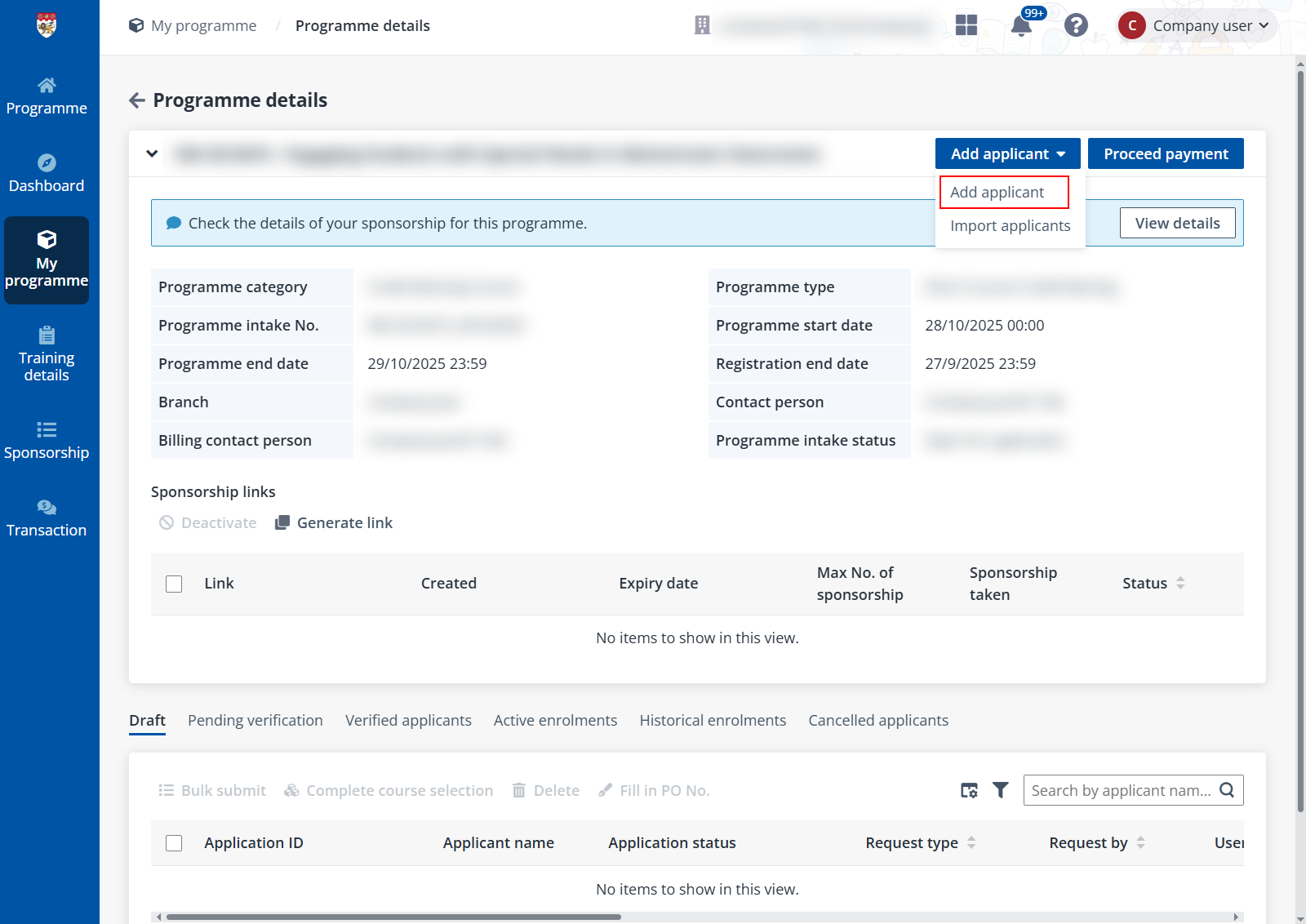
1. On the Programme details page, click Add applicant in the upper-right corner and select Add applicant from the drop-down list.
*Note: Ensure that the applicant to add already has an account in the system. If not, you can Generate a programme link or Bulk submit applicants to help the applicant with programme registration.
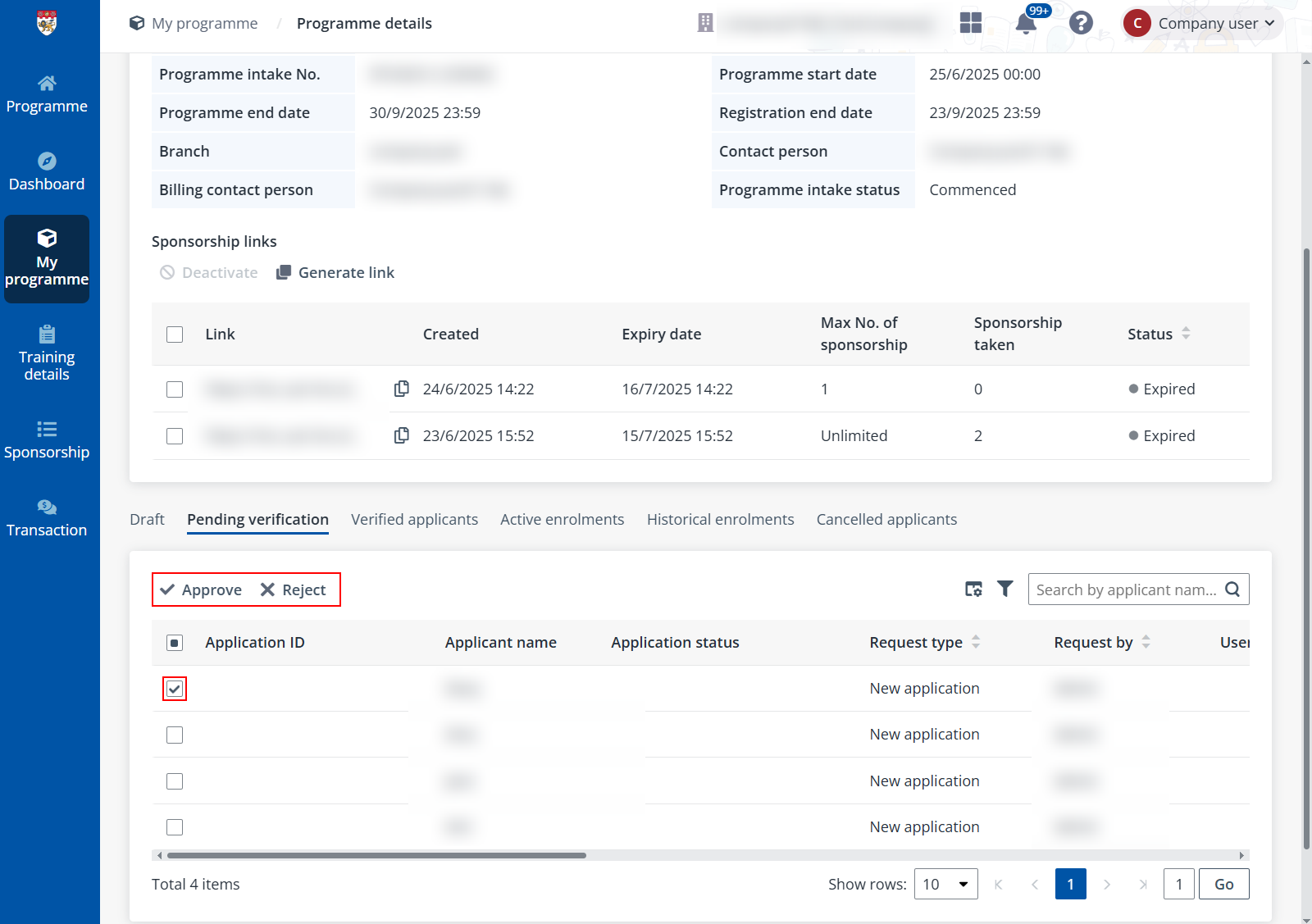
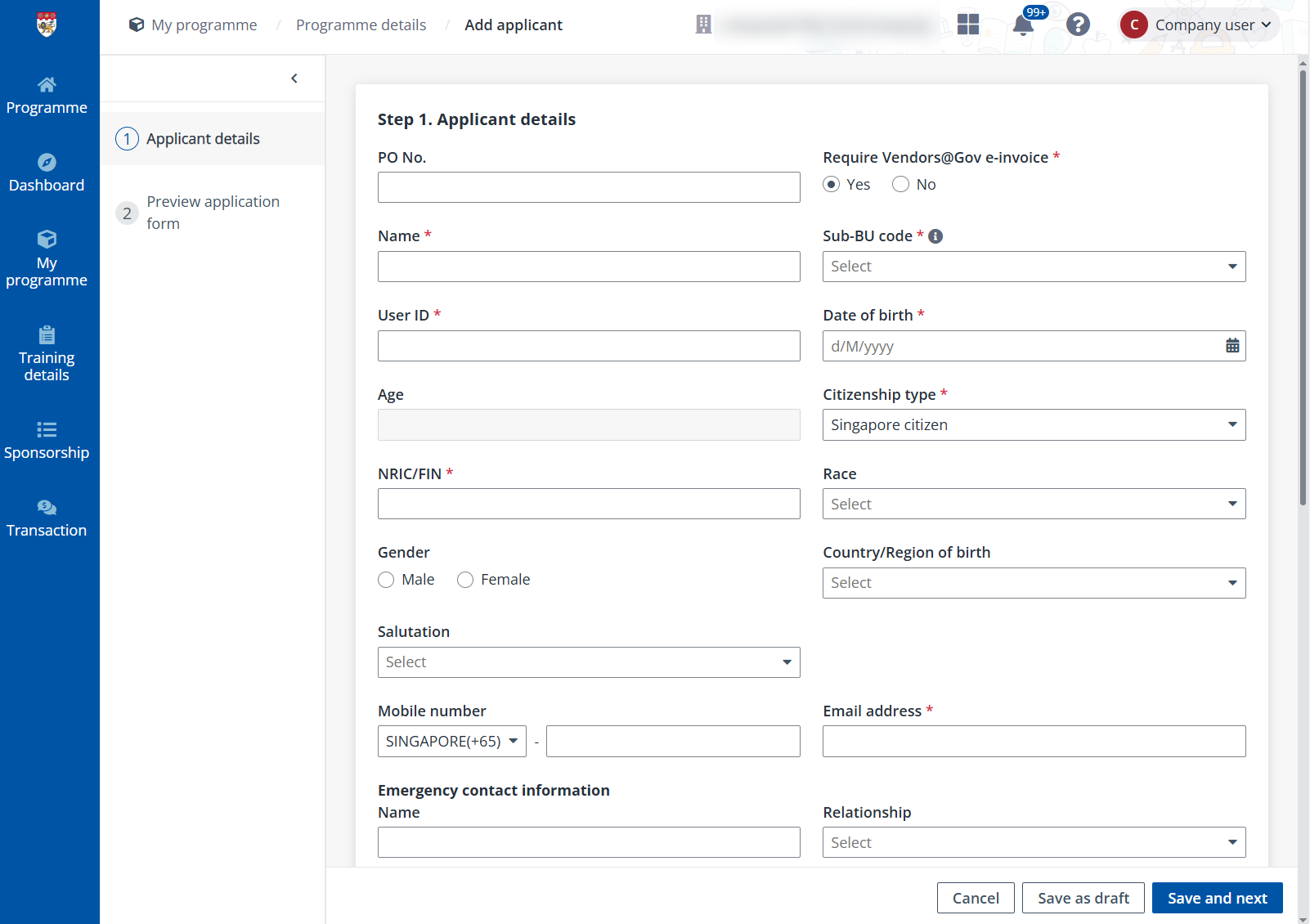
2. In Step 1. Applicant details, fill in the basic information of the employee and click Save and next.
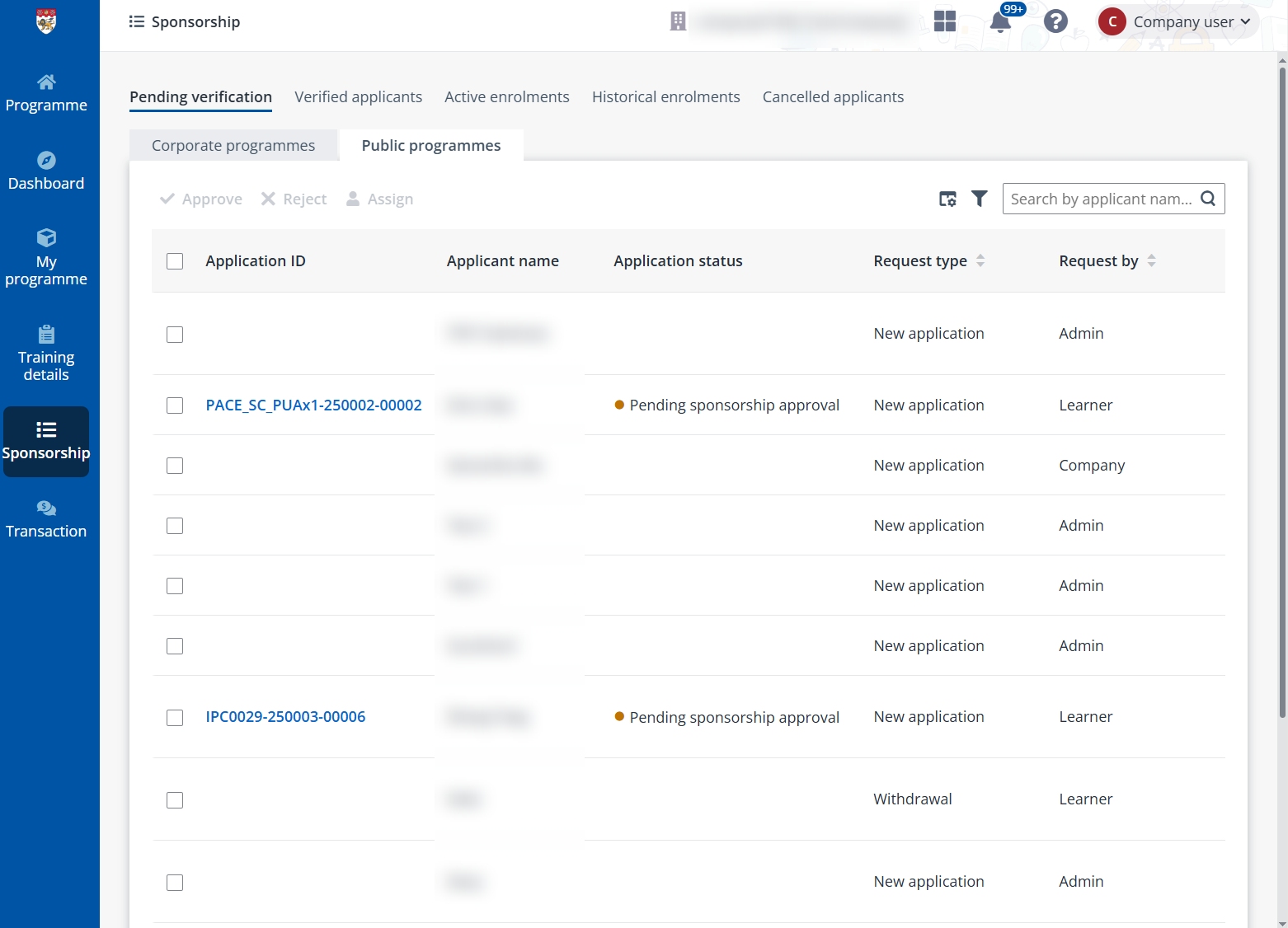
3. In next steps, complete other information of the employee that is required for the registration of this programme intake, if any.
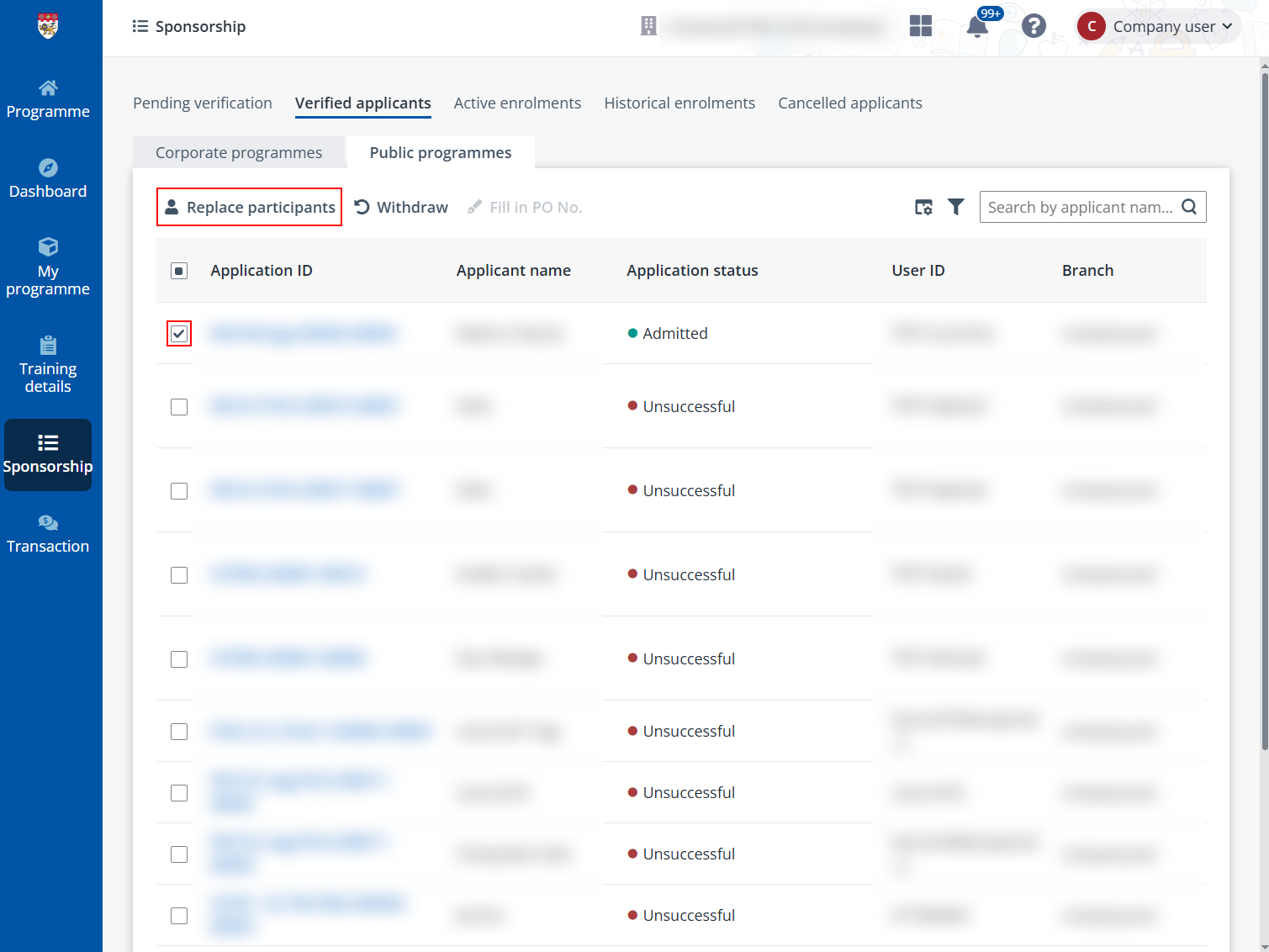
4. When all required information is completed, you will be proceeded to the Preview application form page. On this page, review the information that you completed for the employee and click Submit after you confirm the information is accurate.
5. In Course selection, view the courses required to complete the programme and select the optional courses. Where the funding is available, you can choose whether to use it on behalf of the employee.
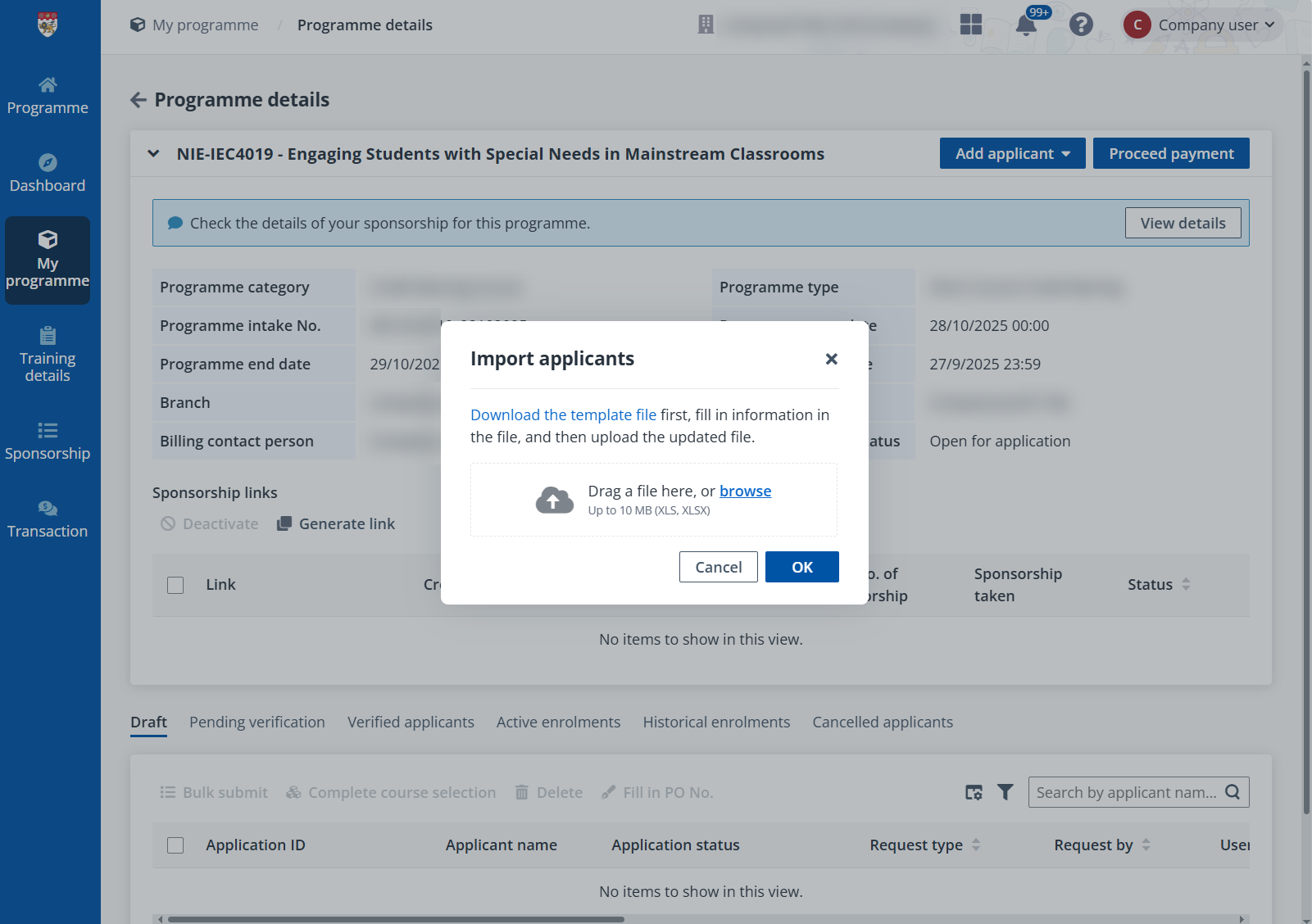
If you have the full employee list for the programme and their detailed information for application, you can import the employees in bulk using the following steps:
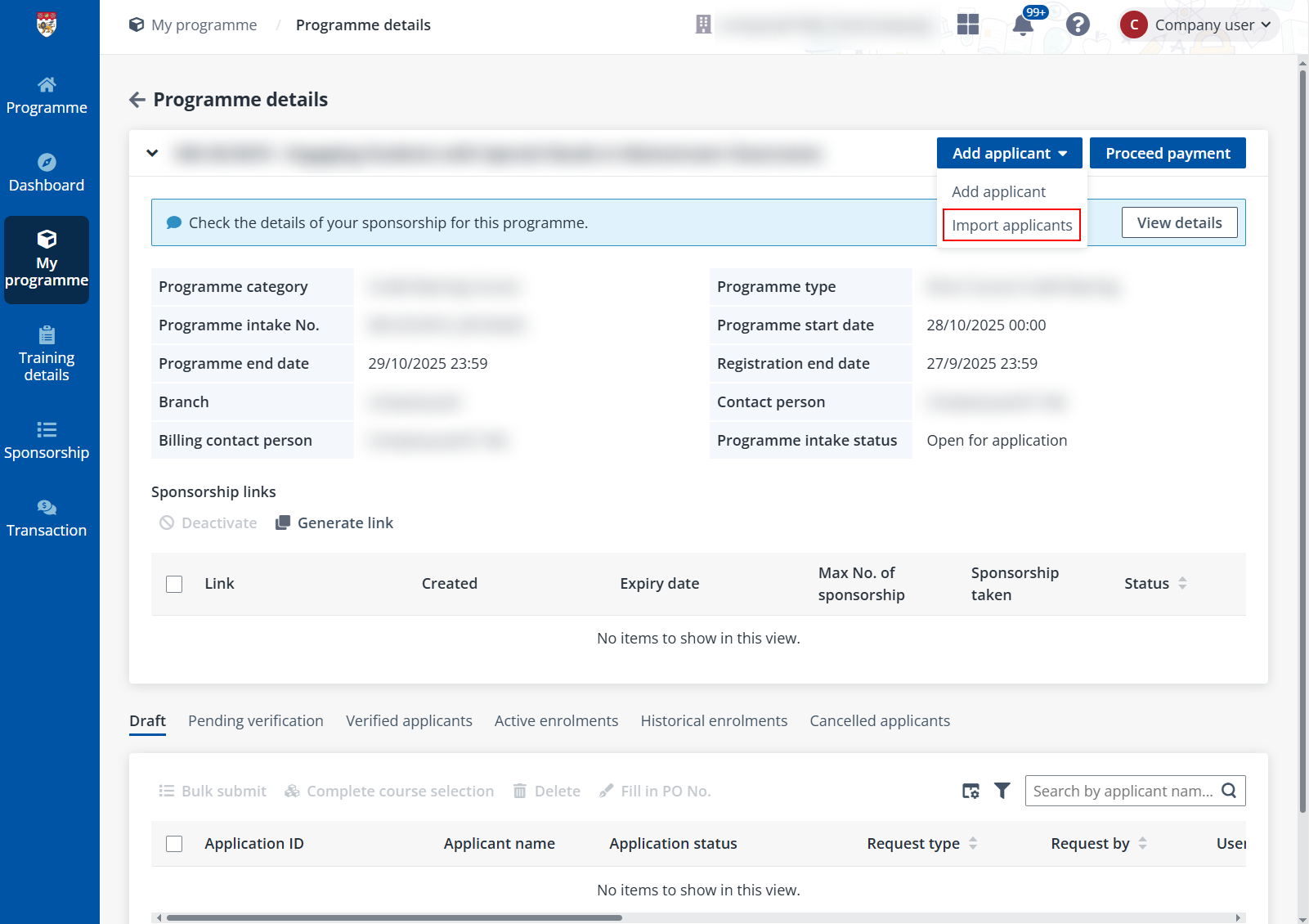
1. On the Programme details page, click Add applicant in the upper-right corner and select Import applicants from the drop-down list.
2. In the Import applicants window, click Download the template file, add information of the employees, and upload the updated file to the window. Then, click OK and the employees are imported.