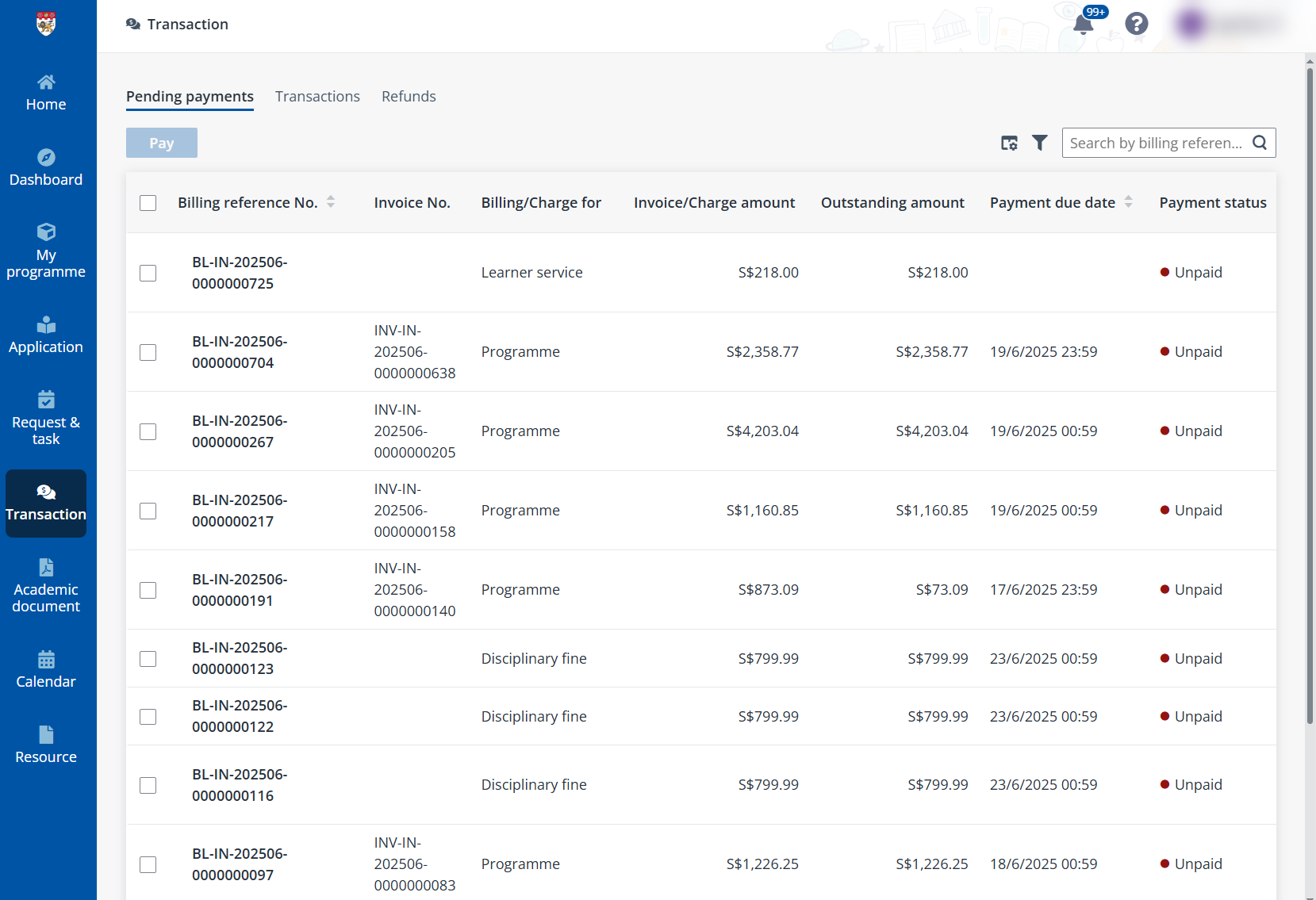
On the Transaction page, all the incomplete payments are listed in the Pending payments tab. You can either make payments individually or complete payments for multiple records in bulk.
To make payment individually, refer to the following steps:
1. In the Pending payments tab, find the payment to complete.
2. Click Pay in the Action column or select the payment and click Pay above the table.
3. On the Payment summary page, view the details of the fees and select a payment mode.
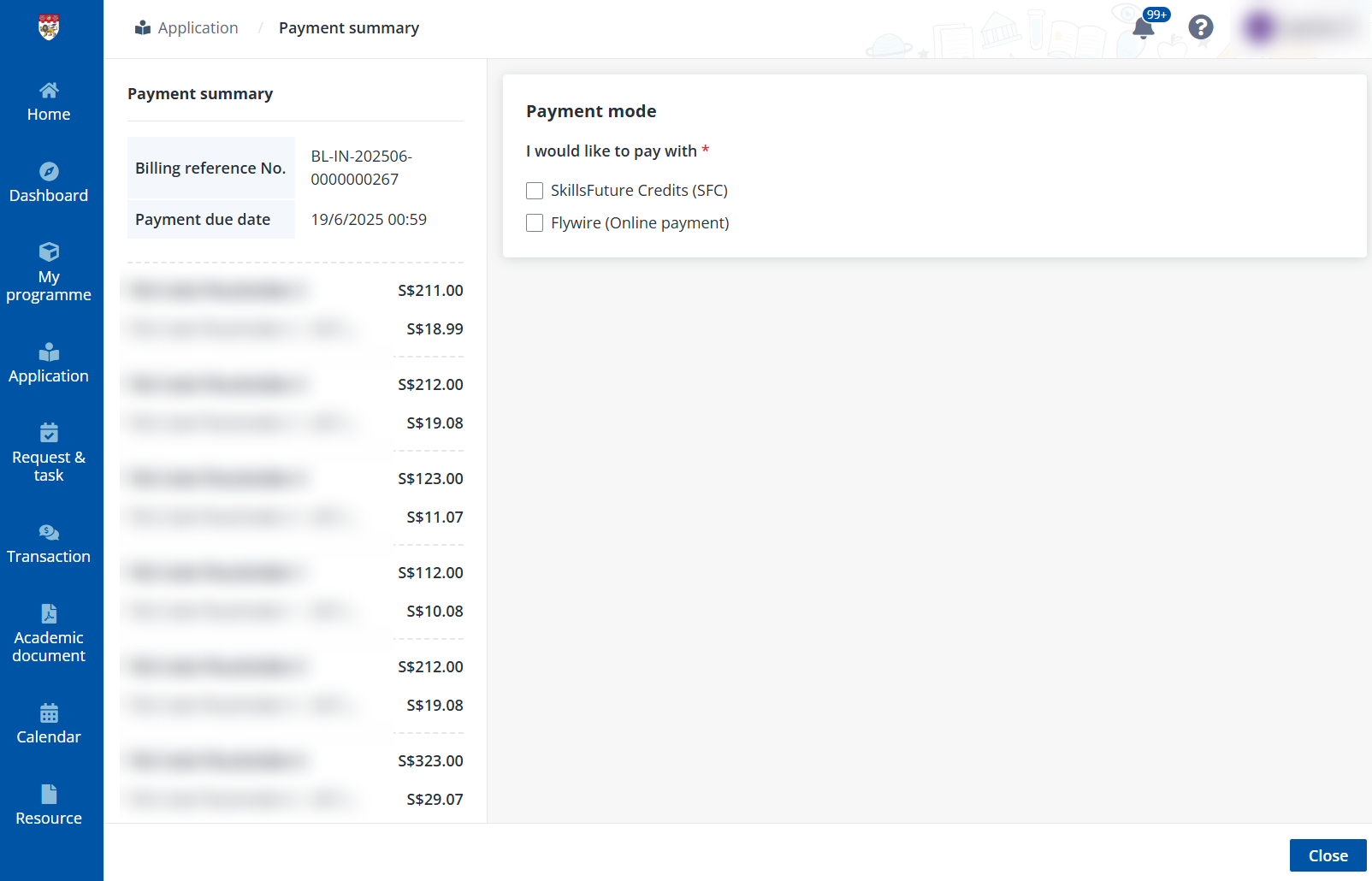
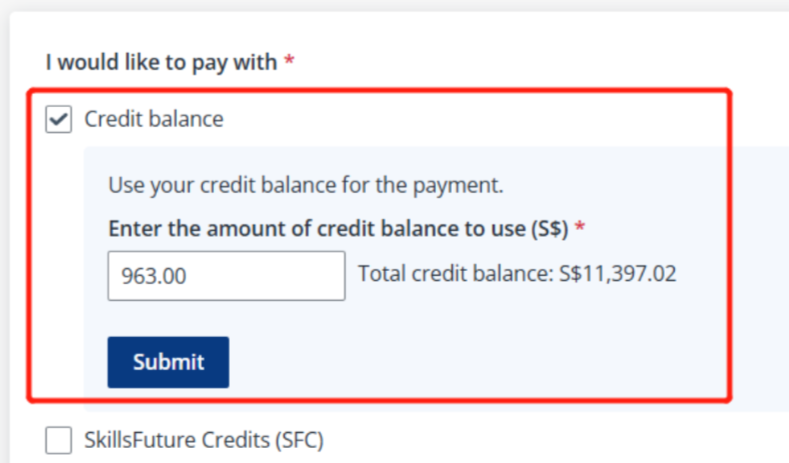
•If there are previous refunded fees, to use the refunded amount for the payment, select Credit balance.
•If you have available alumni course credit to use, the usage should be selected during the programme application. For more details, refer to Application form > Course selection.
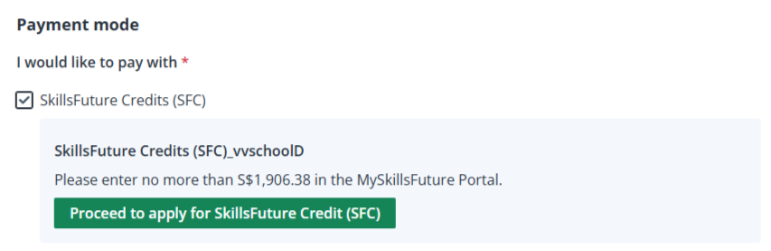
•If SFC is selected, click Proceed to apply for SkillsFuture Credit (SFC) to navigate to the payment page and complete the payment.
4. After making the payment, click View applications to navigate to the Application page.
In the Pending payments tab, select the payments that do not have instalment enabled and complete the following steps to pay them in bulk:
1. Click Pay.
2. On the Bulk submit page, view the details for the payments you have selected, including the payment statuses and select a payment mode to use.
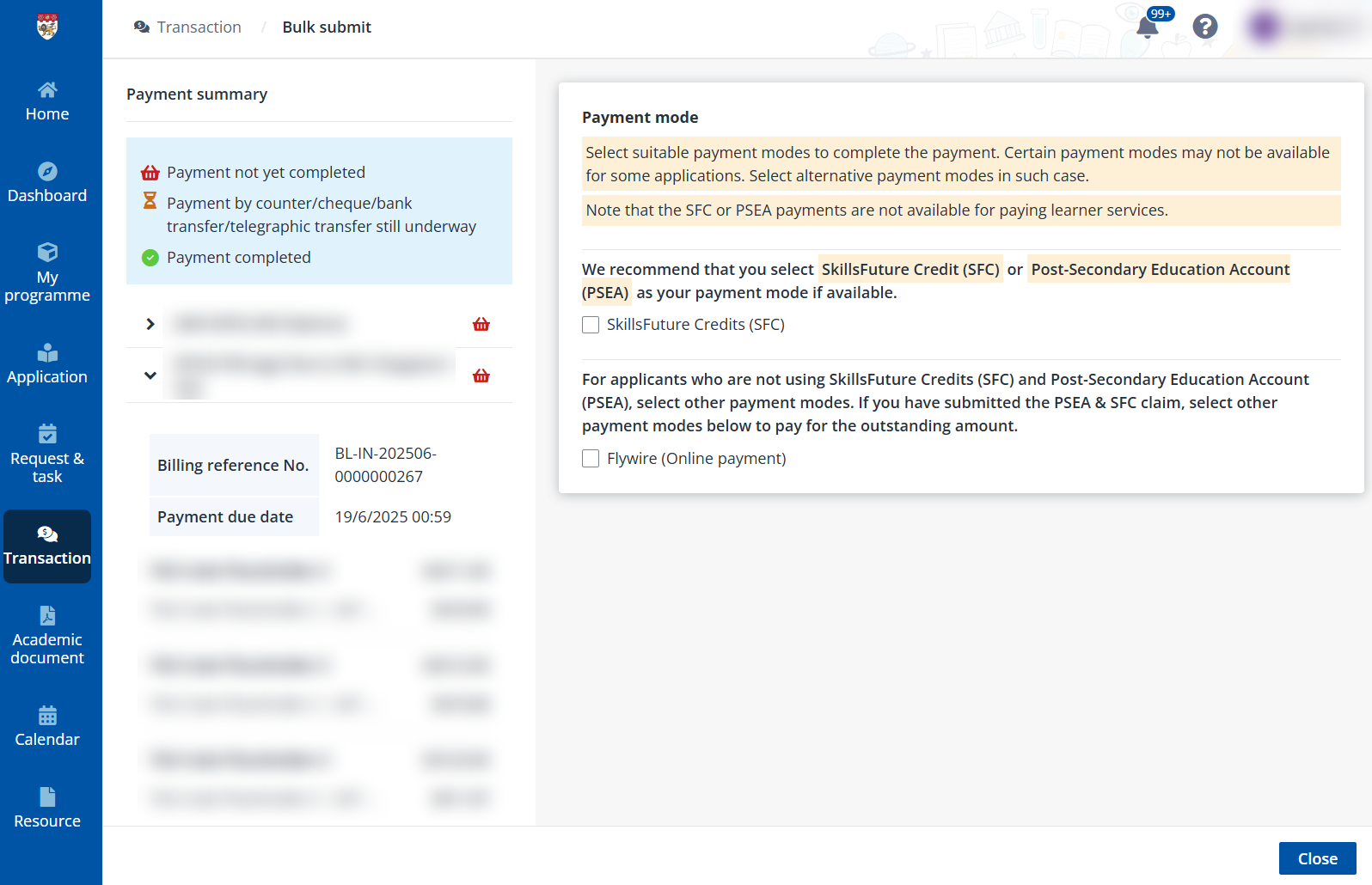
•If there are previous refunded fees, to use the refunded amount for the payment, select Credit balance.
•If SFC is selected, click Proceed to apply for SkillsFuture Credit (SFC) to navigate to the payment page and complete the payment.
3. After making the payment, click Close to go back to the Transaction page.