The content of application form varies with programmes. Refer
to the instructions in the corresponding sections below to complete the
application form.
Applicant details
In Applicant details, complete the following
information:
1. In Applicant
details, you can view your personal information retrieved from My
profile.
*Note: To update any personal information, go to
My profile > Personal particular to manually edit the
information.
2. Click Save and
next.
Education qualification (if applicable)
In Education qualification, complete the following
information:
1. In Education
qualification, click Add education qualification, fill in your
education qualification, and then click Save.
You can also click Sync education qualification and
select the qualifications to sync from your profile.
Note the following:
• If you
have no formal qualification, select the No formal qualification
checkbox.
• If the
academic qualification/professional certification you selected requires a
subject/specialisation, click Add subject/specialisation and fill in the
information of the subject/specialisation.
• If you
cannot find an appropriate academic qualification/professional certification in
the list, enter the name of the academic qualification/professional
certification in the Additional information field.
2. In the
Supporting documents field, click Select system files, select
files, and then click Add to add them as supporting documents. You can
also upload files from your local device.
3. Click Save and
next.
Working experience (if applicable)
In Working experience, complete the following
information:
1. In Working
experience, click Add working experience, fill in your working
experiences, and then click Save.
You can also click Sync working experience and
select the working experiences to sync from your profile.
If you have no working experience, select the No working
experience checkbox.
2. In the
Supporting documents field, click Select system files, select
files, and then click Add to add them as supporting documents. You can
also upload files from Your local device.
3. Click Save and
next.
Colour blindness test (if applicable)
In Colour blindness test, complete the following
information:
1. In Colour
blindness test, select your colour blindness test result.
2. In the
Supporting documents field, upload files from your local device.
3. Click Save and
next.
Other information (if applicable)
In Other information, complete the following
information:
1. In Other
information, fill in the required information for the application form.
2. Click Save and
next.
Pre-submission minimum entry requirement check (if
applicable)
In Pre-submission minimum entry requirement check,
indicate whether you meet the minimum entry requirements for the programme using
the following instructions:
1. In
Pre-submission minimum entry requirement check, you can see the MER check
results for the programme in the Minimum entry requirement check results
section.
2. In the Minimum
entry requirement declaration section, you need to indicate whether you meet
the minimum entry requirements.
• If you
meet the minimum entry requirements, select the I confirm that I have met the
minimum entry requirements and wish to proceed checkbox.
• If you
do not meet the minimum entry requirements, select the I don't meet the
minimum entry requirements and would like to proceed with recognized prior
learning application checkbox and fill in the information for the RPL
registration form.
3. Click Save and
next.
For programmes without minimum entry requirement checks, you
need to choose whether to proceed with recognized prior learning application and
fill in the registration form in the Additional information
step.
Declaration form (if applicable)
In Declaration form, complete the following steps:
1. In Declaration
form, you can see all declaration forms.
2. Select the I
hereby acknowledge and accept the responsibilities under this declaration
checkbox for each declaration form.
3. Click Save and
next.
Preview application form
In Preview application form, complete the following
steps:
1. In Preview
application form, you can see all application information configured in
previous steps.
2. After checking
the application information, you can choose one of the following application
processes:
• If you
are applying for a PUO programme, click Submit to submit the application
form.
• If you
are applying for a PUA programme, you can click Confirm and pay. In the
Confirm and pay window, select Pay now and you will be proceeded
to Course selection.
You can also select Pay later with other pending
applications in Application > Pending submission in the Confirm and
pay window to complete the payment and submit the application later.
*Note: The system provides two application processes
based on the payment options:
• PUA
(Pay-upon-application) – You need to make payment during the application process
to complete the application.
• PUO
(Pay-upon-offer) – You need to wait for a programme offer to be made available
for your acceptance and payment after the application process.
Course selection
In Course selection, complete the following
information:
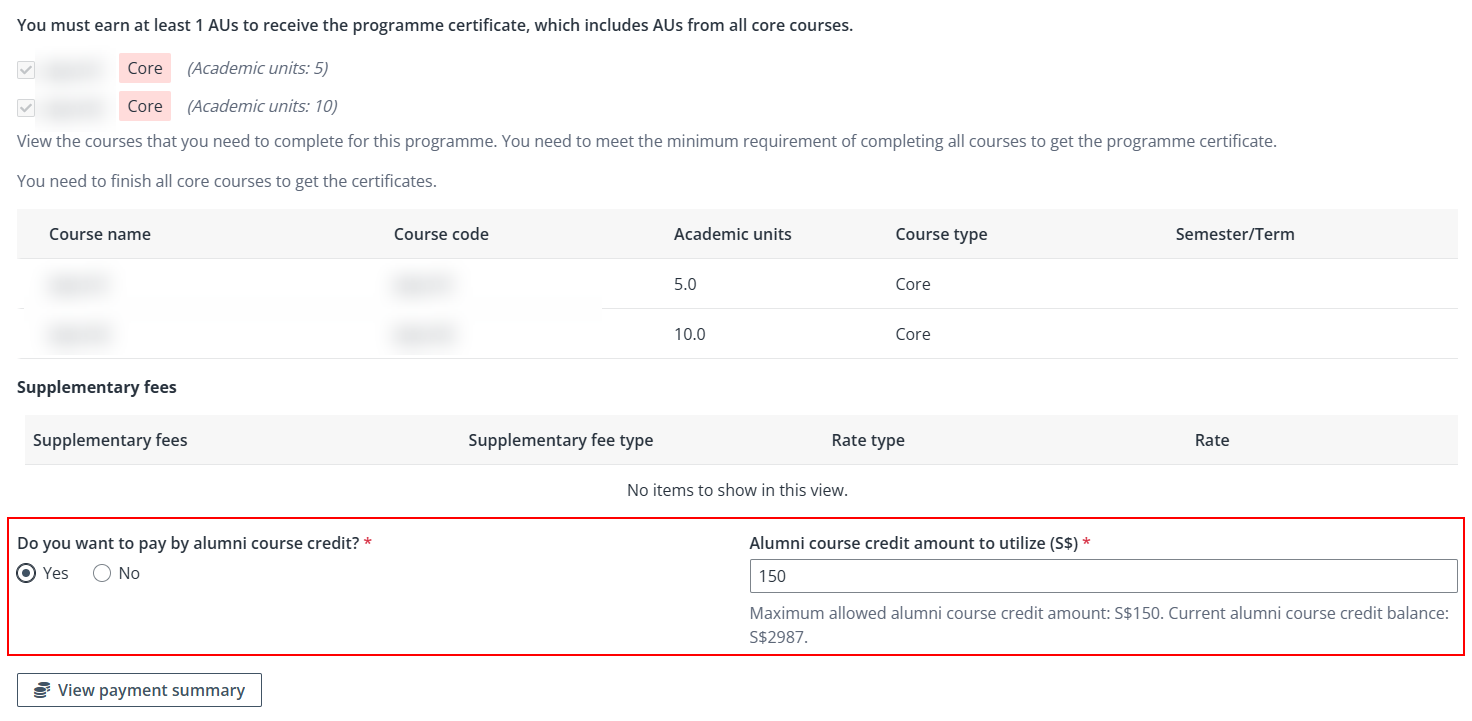
1. In Course
selection, you can see all core courses that are required to complete for
the programme and select elective courses for corresponding certificates.
2. Click View
payment summary and view payment summary details.
3. In the Emergency
contact information, fill in the required fields. If you have provided emergency
contact information during your previous programme applications, changes in the
emergency contact in this new application will be updated to the previous
applications as well.
4. If you have
available alumni course credit, select whether to pay the course fee by it. If
Yes is selected, enter the amount of credit to utilise.
*Note: Alumni course credit usage cannot be utilised
for this programme after the application is submitted. Therefore, make sure you
have selected the usage in this step. Or you will need to cancel the submitted
request to modify this information.
5. Click
Confirm to submit the course selection.
Payment summary
In Payment summary, complete the payment using the
following instructions:
1. In Payment
summary, you can view the details of the fees that you need to pay.
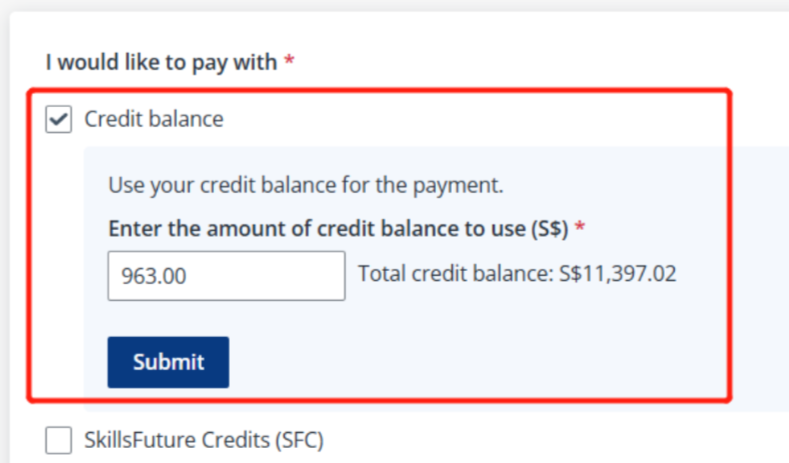
2. Select a payment
mode.
• If
there are previous refunded fees, to use the refunded amount for the payment,
select Credit balance.
• If you
have available alumni course credit to use, the usage should be selected during
the programme application. For more details, refer to the Course
selection section above.
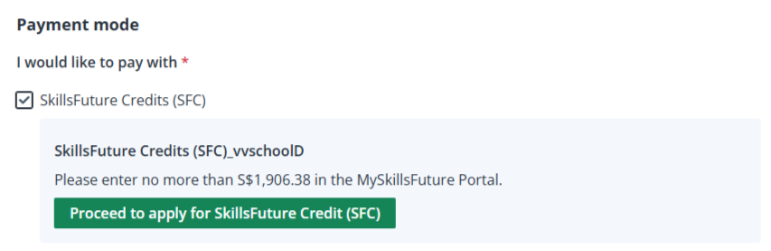
• If SFC
is selected, click Proceed to apply for SkillsFuture Credit (SFC) to
navigate to the payment page and complete the payment.
*Note: If the available credit of the selected
payment mode is not enough for the total amount payable, you can complete the
payment for the outstanding amount with another payment mode later.
3. After you
complete the payment, click Submit to submit the
application.