Make payments
To check the payments that require to be paid, click
Transaction on the left navigation pane and the incomplete payments are
all listed under the Pending payment tab.
Use one of the following methods to complete the
payments:
*Note: If you are using Flywire for your
payments, ensure that the learner count of the payment, either individually or
in bulk, does not exceed 30.
Make payment individually
To complete one specific pending payment, follow the steps
below:
1.
To complete your payment, start from one of the following means:
•
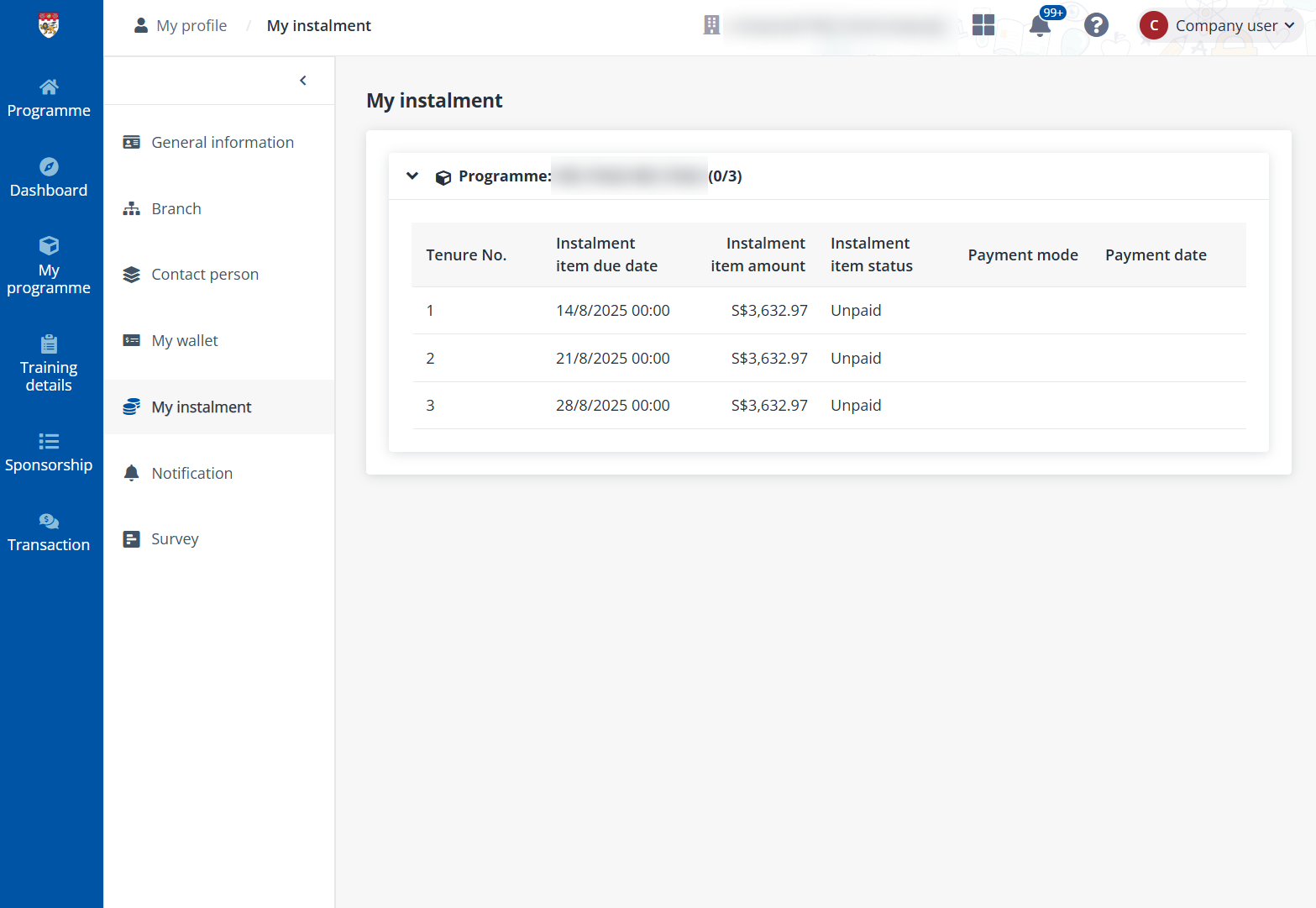
On the Dashboard, locate and select the payment to
complete. Then click Pay in the Action column or above the
table.
•
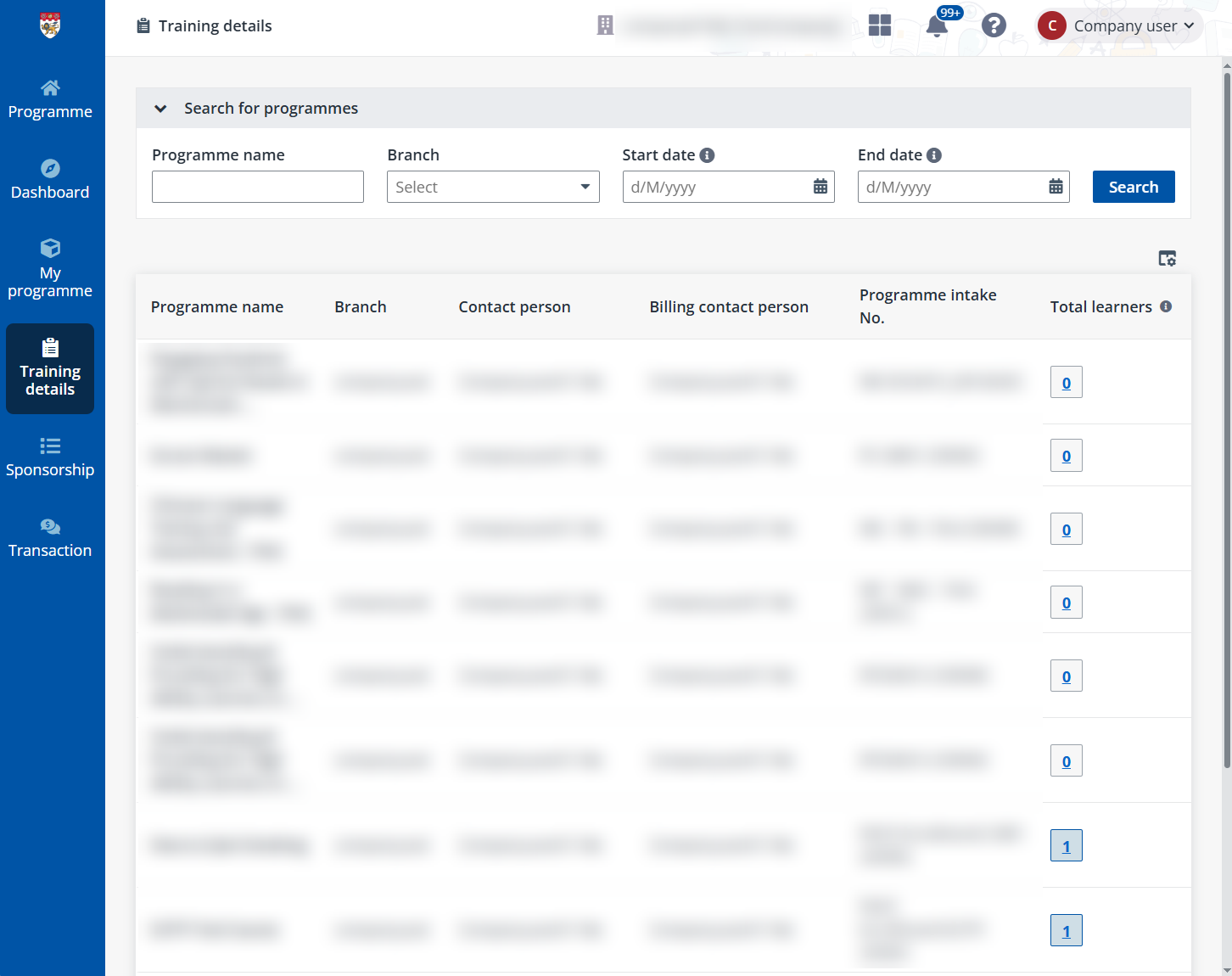
Or go to Transaction >Pending payments tab,
locate and select the payment to complete. Then click Pay in the
Action column or above the table.
2.
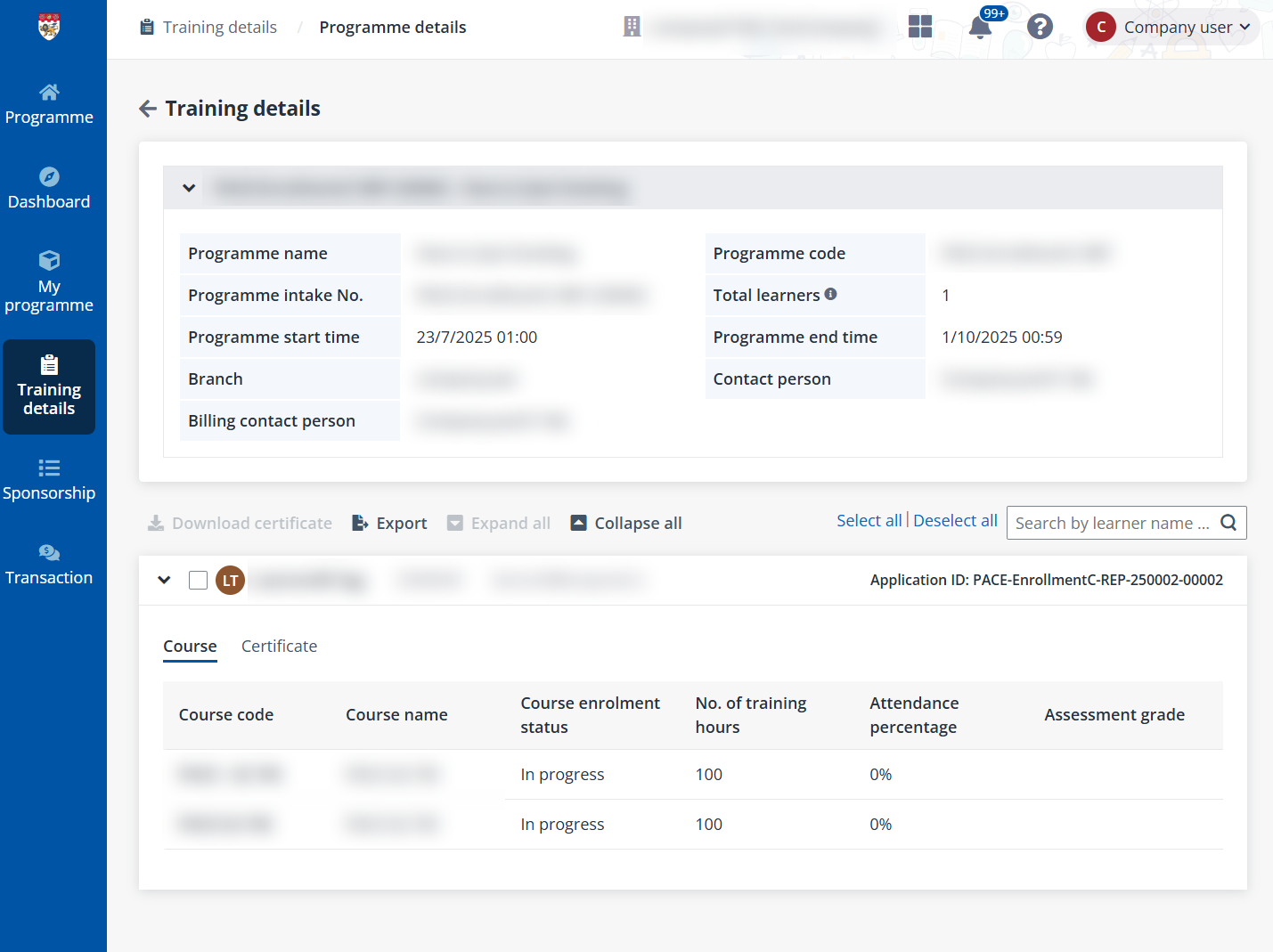
On the Payment summary page, check the details of the fees that need to
be paid.
When the payment is billed for a programme, the fee details
of each applicant can be checked by clicking the number of applicants in the
General information section.
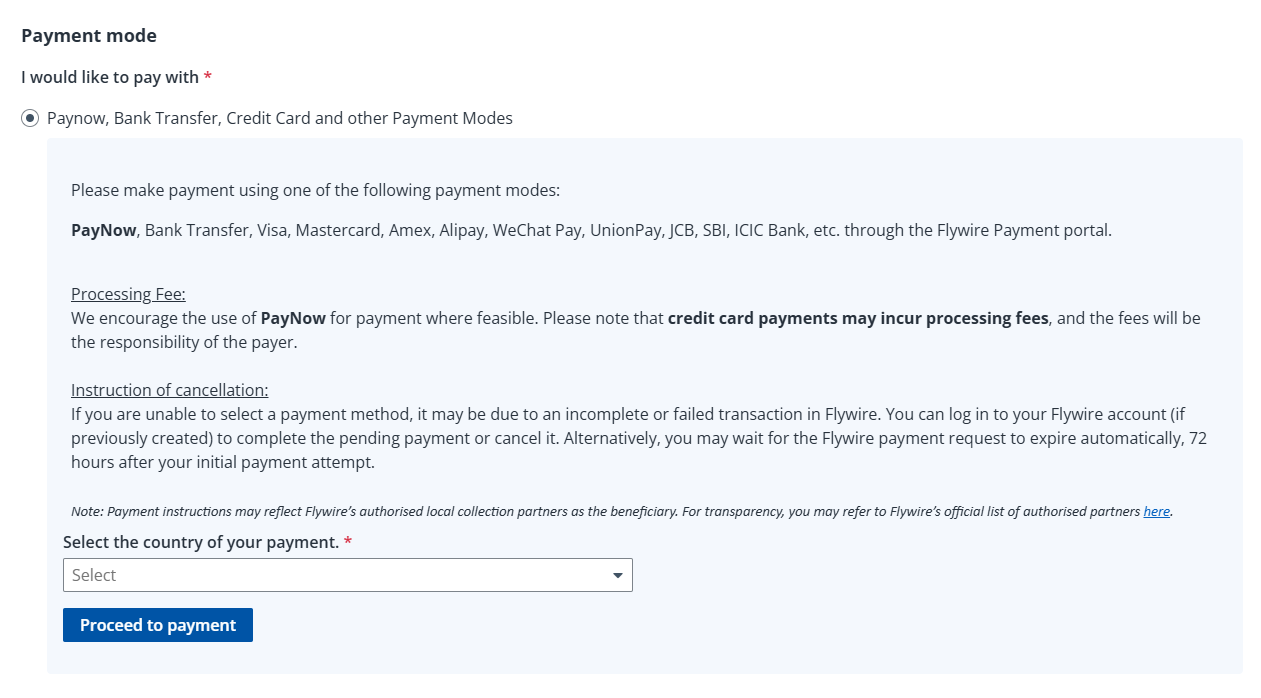
3. In the Payment
mode section, select a mode to pay for the fees.
If you have selected PayNow, Bank Transfer, Credit Card
and other Payment Modes, you need to continue the payment through the
Flywire Payment portal by following the steps below:
a. Select the country of your payment
and then click Proceed to payment.
b. In the payment method selection
window, confirm the country or region again and then select the payment
method.
c. Upon confirmation, a Payment
Instruction PDF file will be available. Please follow the instructions in the
file.
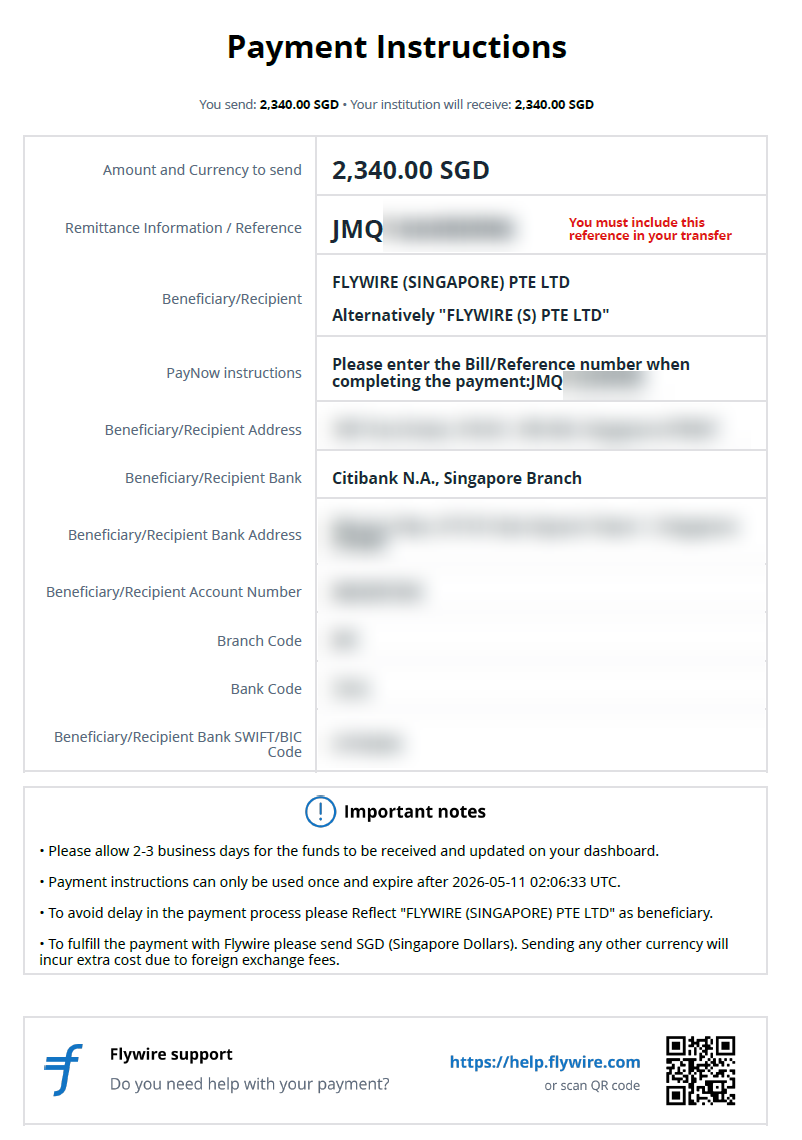
*Note: The instructions are visible only once and
will expire in six days after being generated.
d. After the payment is made, you need
to follow up with Flywire via the Help
Centre’s Mailing, Calling, or Live Chatting approach.

e. In the follow-up process, you will
need to submit your proof of payment (remittance) to Flywire for verification.
Once the transaction is reflected as “Guaranteed” in the Flywire portal, the
payment status in TMS will automatically update to “Paid”.
Make payments in bulk
To complete multiple pending payments in bulk, follow the
steps below:
1.
To complete your payment, start from one of the following means:
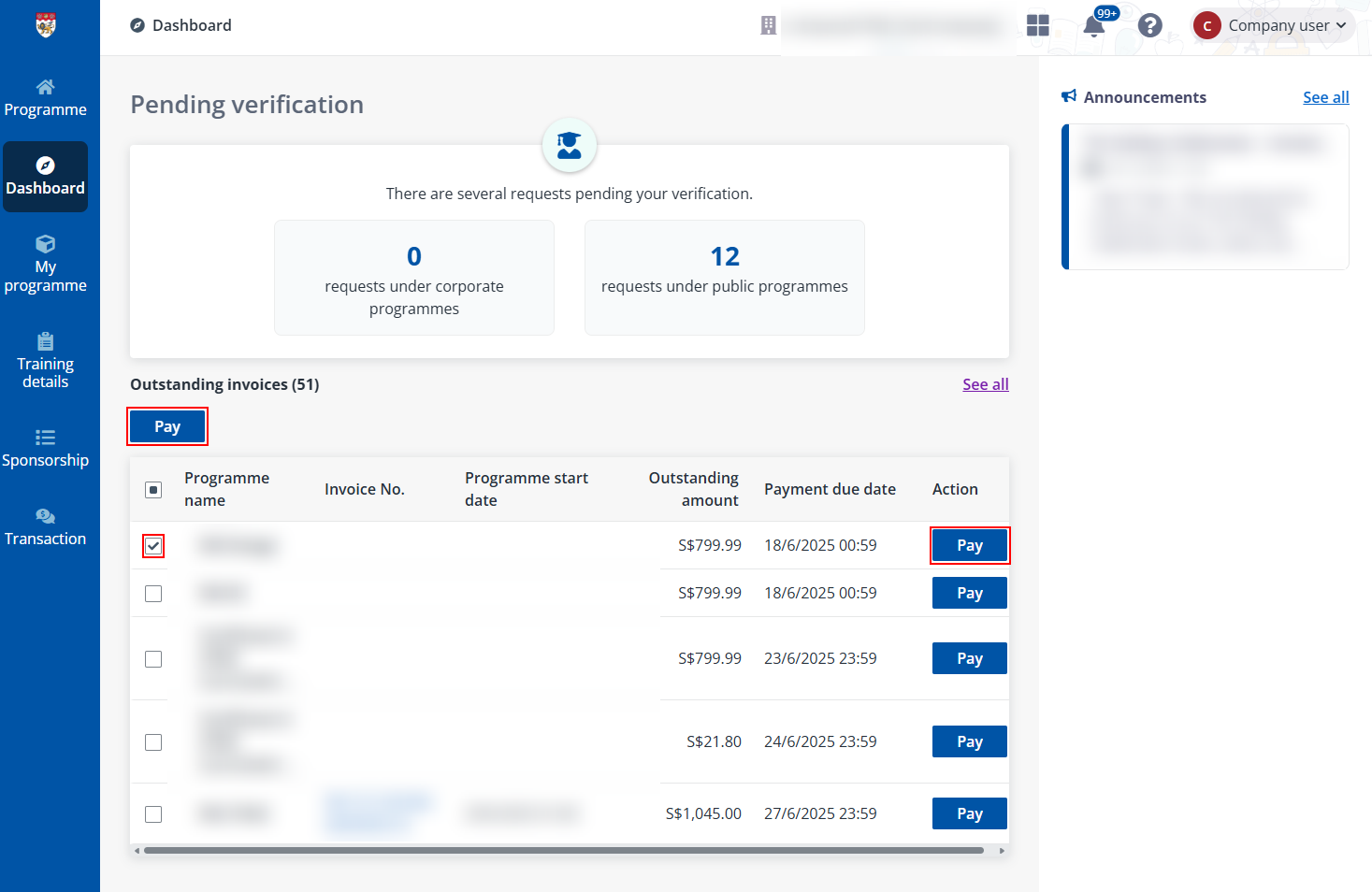
•
On the Dashboard, locate and select the payment to
complete. Then click Pay in the Action column or above the
table.
•
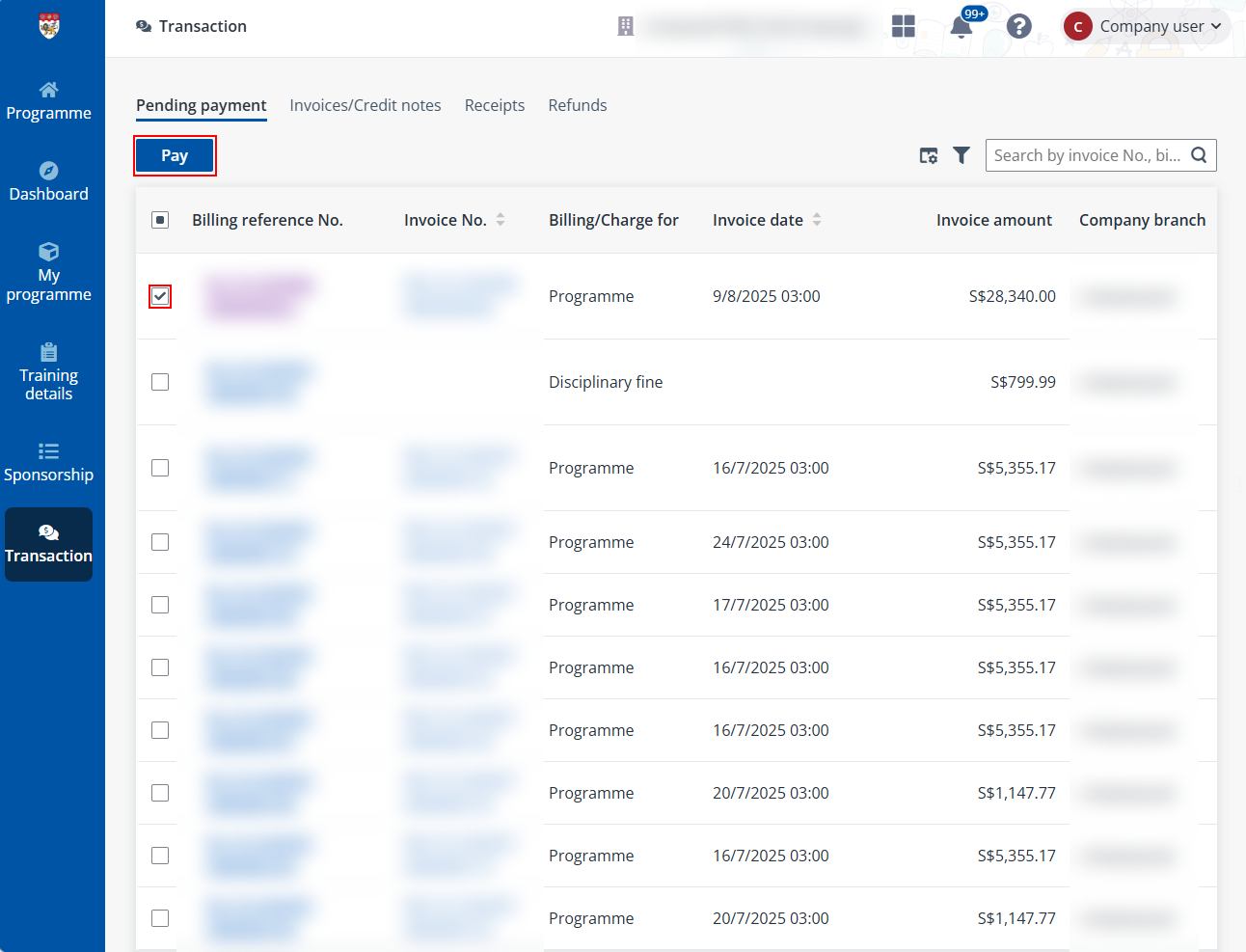
Or go to Transaction >Pending payments tab,
locate and select the payment to complete. Then click Pay in the
Action column or above the table.
2.
On the Payment summary page, check the details of the selected payments,
including their payment statuses, in the left pane.
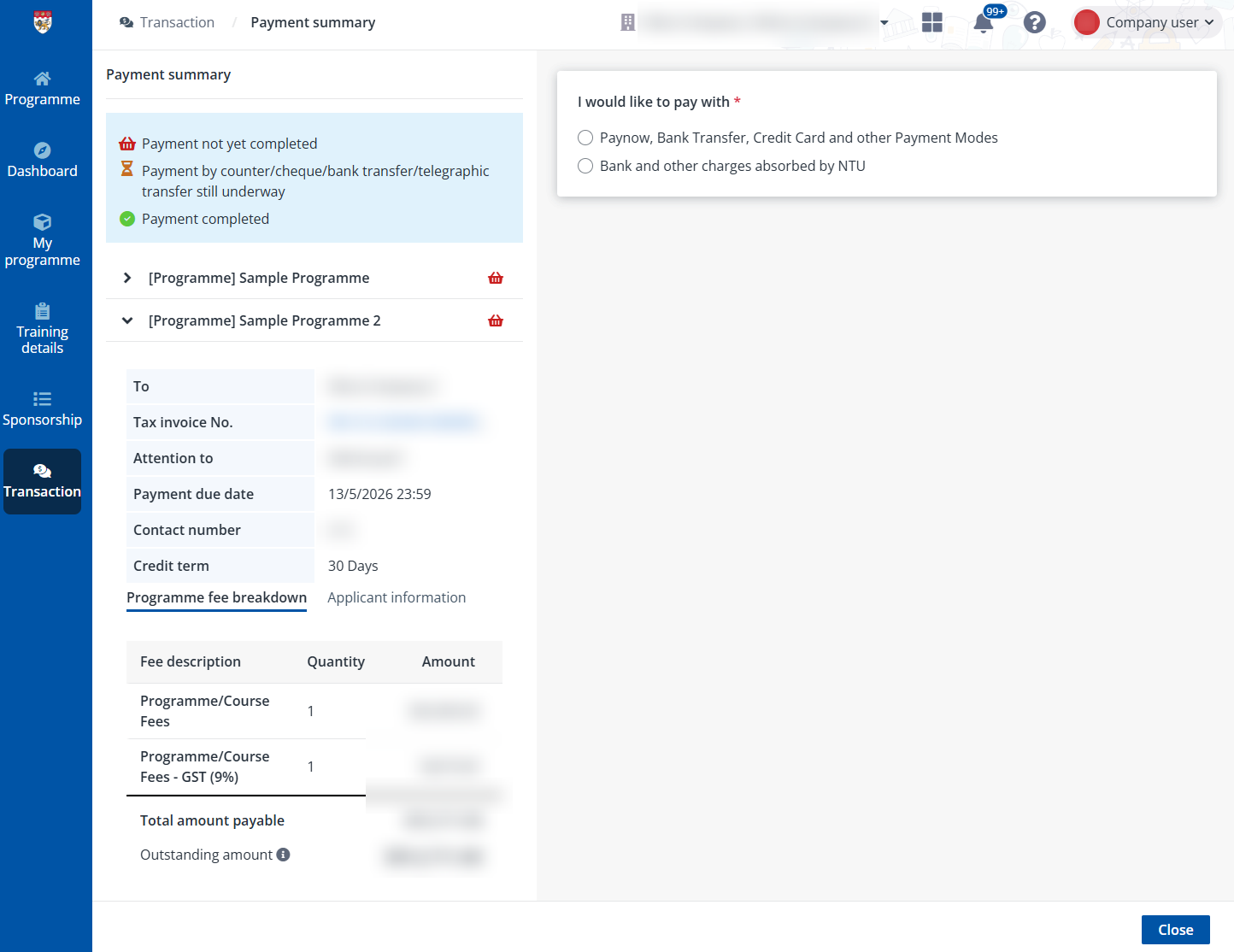
3. In the right
pane, select a payment mode to complete the payment.
If you have selected PayNow, Bank Transfer, Credit Card
and other Payment Modes, you need to continue the payment through the
Flywire Payment portal by following the steps below:
a. Select the country of your payment
and then click Proceed to payment.
b. In the payment method selection
window, confirm the country or region again and then select the payment
method.
c. Upon confirmation, a Payment
Instruction PDF file will be available. Please follow the instructions in the
file.
*Note: The instructions are visible only once and
will expire in six days after being generated.
d. After the payment is made, you need
to follow up with Flywire via the Help
Centre’s Mailing, Calling, or Live Chatting approach.
e. In the follow-up process, you will
need to submit your proof of payment (remittance) to Flywire for verification.
Once the transaction is reflected as “Guaranteed” in the Flywire portal, the
payment status in TMS will automatically update to “Paid”.