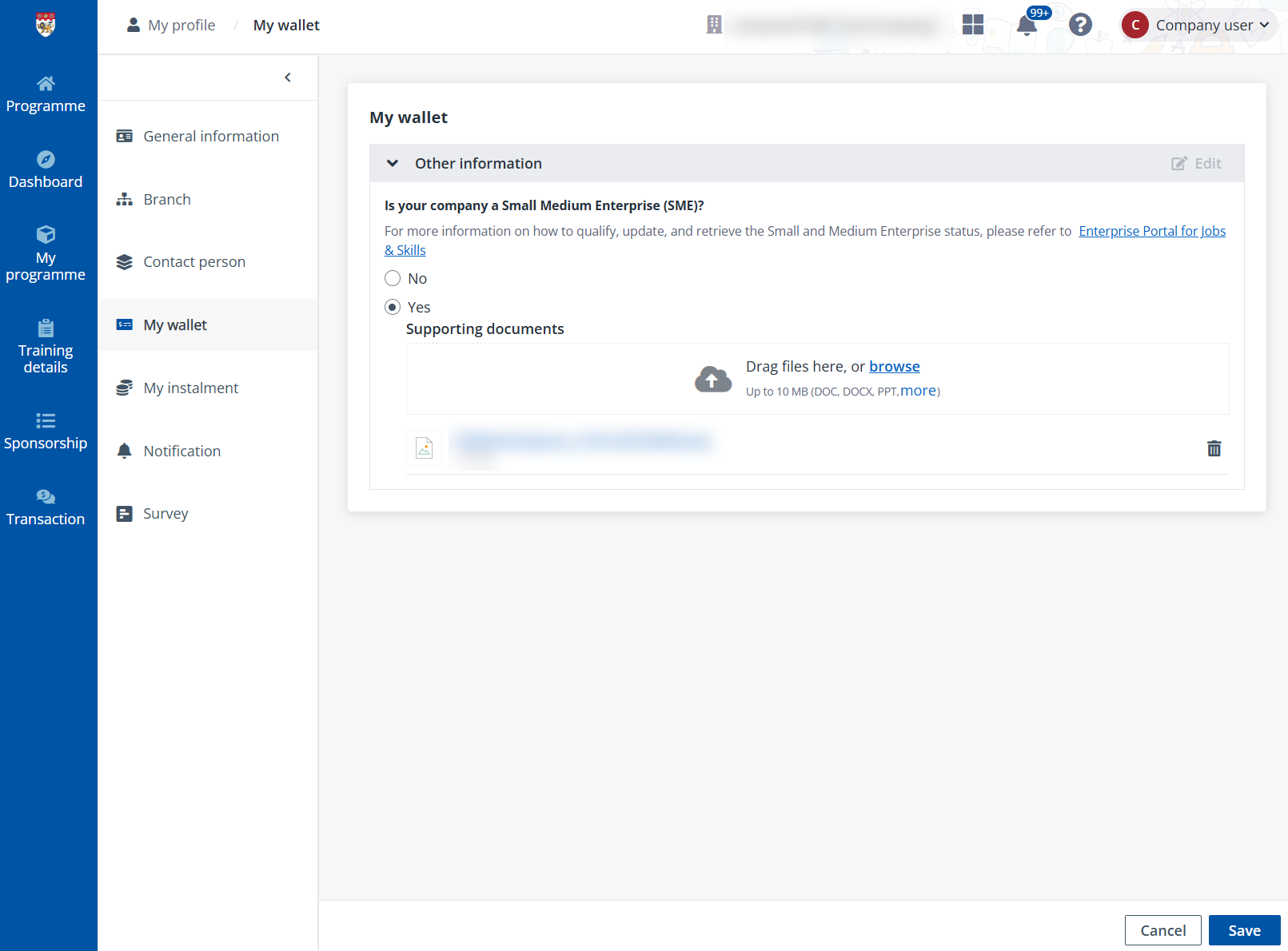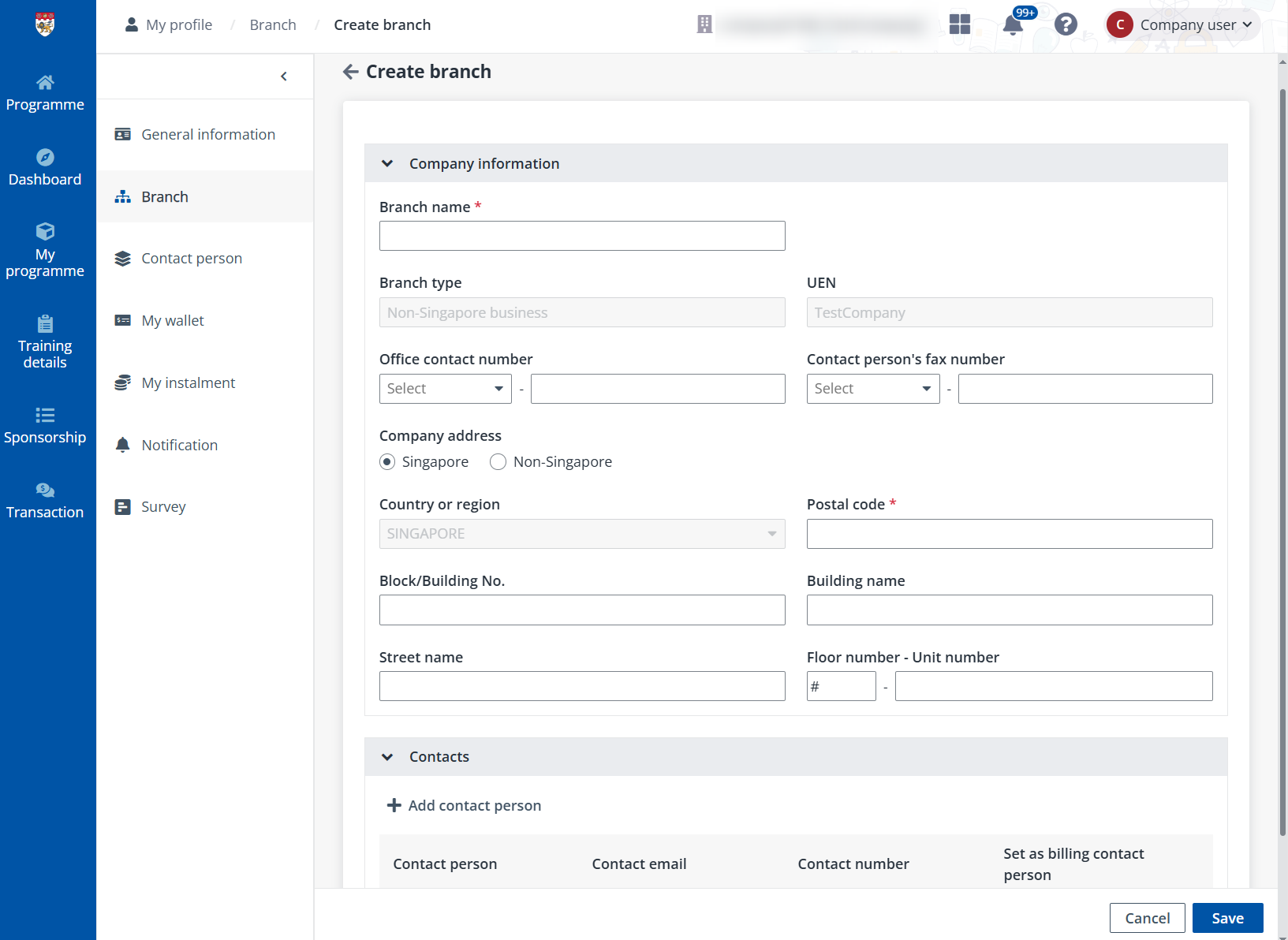
Before adding contacts to your company branches, company users need to be added to the system via the following steps:
1. Click the Quick links icon in the upper-right corner of the company portal page and then click MaivenPoint Online Services.
2. In MaivenPoint Online Services, go to Account. Then, select your company and click Manage contacts.
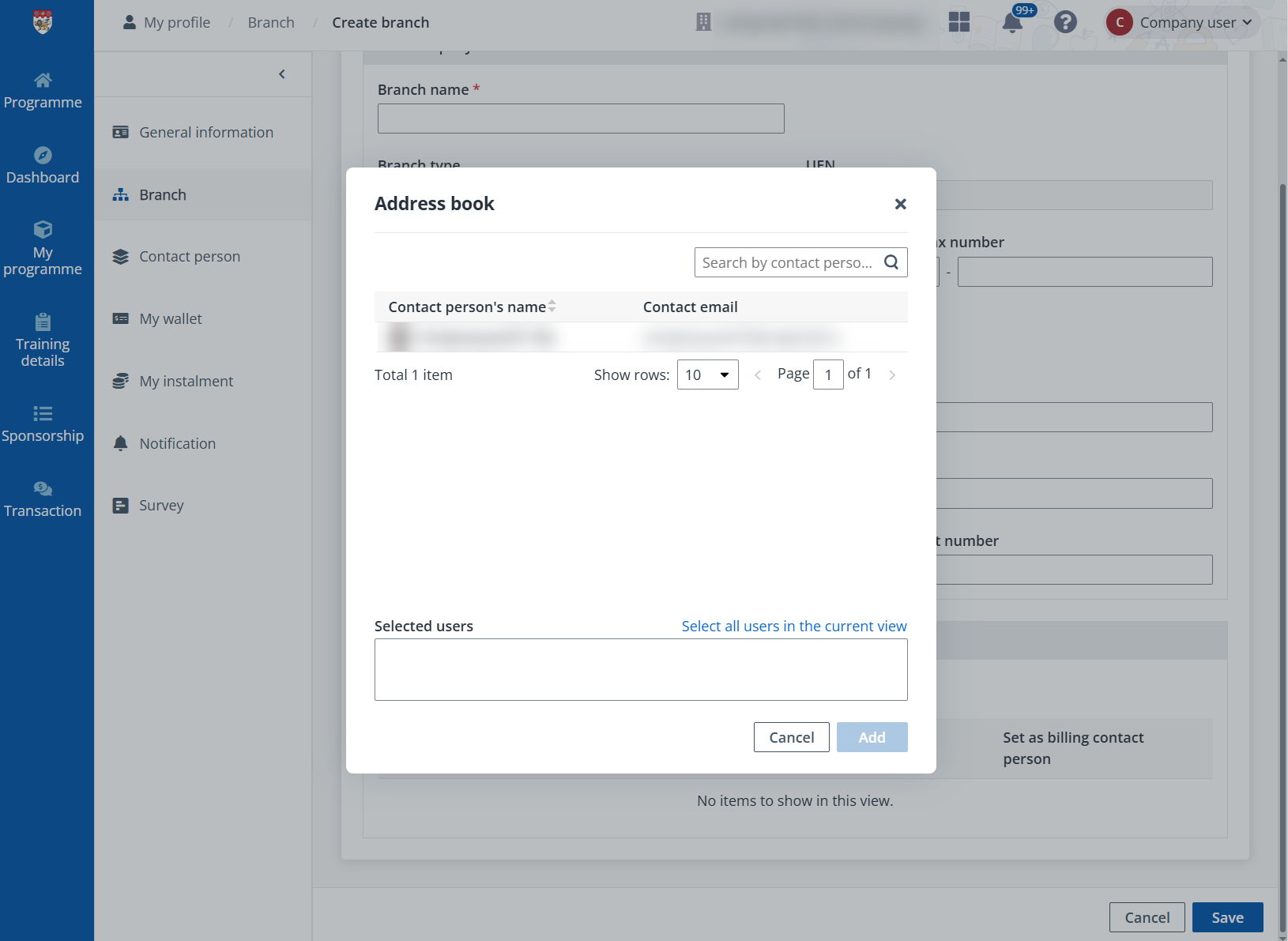
3. On the Manage contacts page, click Add contact. Then, set up the contact account and information in the Add contact panel.
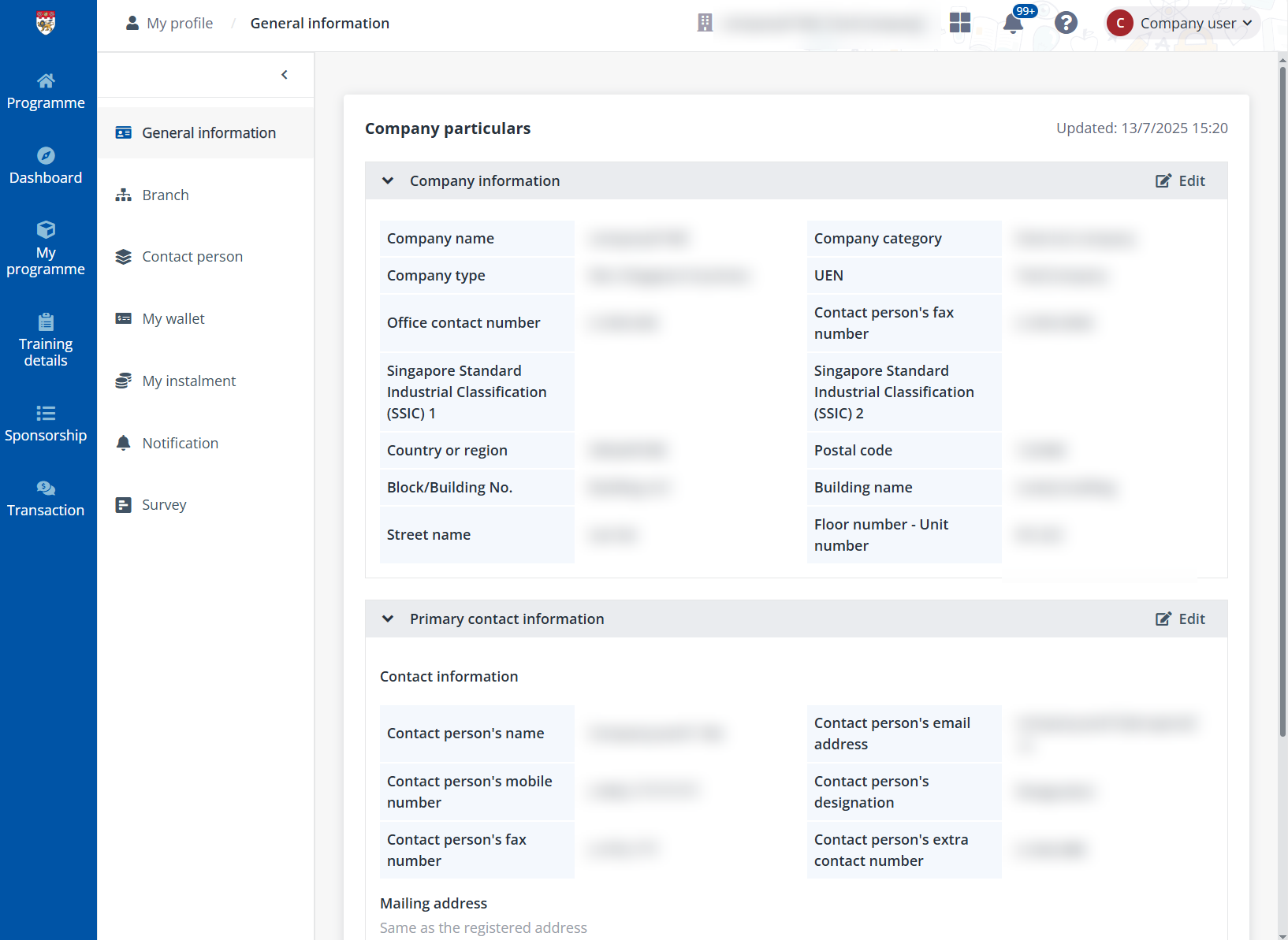
4. Click Save. An email will be sent to the configured contact email. The added user can use the link attached to the email to initialise the account password and sign in to the company portal.